• XonTel WiKi
  • Telsip WiKi
  • XonTel WiKi
  • Telsip WiKi
  • PBX Manager
    • PBX V 1.X.X
      • Overview
        • Installation
          • PBX ISO Installation on ESXi
        • License Activation & Verification
        • Log in to the PBX
      • System
        • Authentication
          • Users
          • Groups
          • Permissions
        • Network
          • Network Interface
          • Network Routes
          • Network Host
          • Static Routes
          • Diagnostic Tools
        • Host Name
        • Email
        • Security
          • IP Tables
          • Fail2ban
        • Dynamic DNS
        • VPN
          • Open VPN
          • SSTP
        • Maintenance
      • PBX
        • Extensions
        • Trunks
        • Call controls
          • Inbound Routes
          • Outbound Routes
          • Time Conditions
          • Auto CLIP
        • Call Features
          • IVR
          • Ring Group
          • Queue
          • Paging/Intercom
          • Blacklist
        • Voice Prompts
        • Music On Hold
        • NAT
        • Status
        • CDR
        • Feature Code
        • Recording Storage
        • Transport
        • TLS Certificate
      • Event Center
        • Session Timeout
        • Activity Log
  • مع كول سنتر زونتل
    • Call Center V 1.X.X
      • Overview
        • Installation
        • Log in to the call center
        • License Activation & Verification
      • Dashboard
        • Agent Insights
        • Inbound calls
        • Outbound calls
        • My Dashboard
      • Call Center Management
        • Missed Call Actions
          • Missed Calls Actions History
          • Missed Call Actions
          • Missed Calls Actions Logs
        • Type of Break
        • Widgets
        • CDRs
        • CDR Survey Questions
        • Queues
        • Queue Logs
        • Queues Evaluation
        • Trunk
        • External Lookup
      • Contacts Management
        • Contacts
        • Contact Groups
        • Companies
        • Contact Custom fields
        • Customer Journey
      • Authentication
        • Users
          • Admin
          • Supervisor
          • Agent
        • Groups
        • Permissions
        • Add End User
      • Applications
        • Ticket Managements
          • Create Ticket
          • Categories
            • Sub Categories
          • Reminder Settings
          • Tickets List
          • Ticket Statistics
          • Tickets CCs
          • Follow Up
          • Notifications Templates
          • Custom Fields
          • Ticket Logs
        • SMS
          • SMS Message
          • Bulk SMS
          • SMS Templates
        • Email Management
          • Outgoing Emails
          • Incoming Emails
          • Attachments
          • Templates
          • Teams
        • Auto Dialer
          • Dial Teams
          • Auto Dialer Log
          • Auto Dialer Status
        • Web Chat
          • Dashboard
          • Offline Messages
          • Web Chat Logs
        • Social Media
          • Social Media Teams
          • Social Media Sessions Tracker
          • WhatsApp
        • Agent Chat
      • Reports
        • Generate Reports
      • Settings
        • Site Administration
        • Email Settings
        • Email Channel Mailbox
        • Email Channel Outbox
        • Email Logger
        • Web Chat Settings
        • SMS Gateway
        • ODBC Settings
        • System Parameters
        • Updates
        • Https Certification
        • Web Phone Configuration
        • Web Logo Settings
        • End User Logo
      • Block
        • Blocked Word
        • Block Settings
      • Status
      • Session Control
      • Activity Log

PBX ISO Installation on ESXi

12 views 0

Written by xontel_admin
نوفمبر 29, 2025

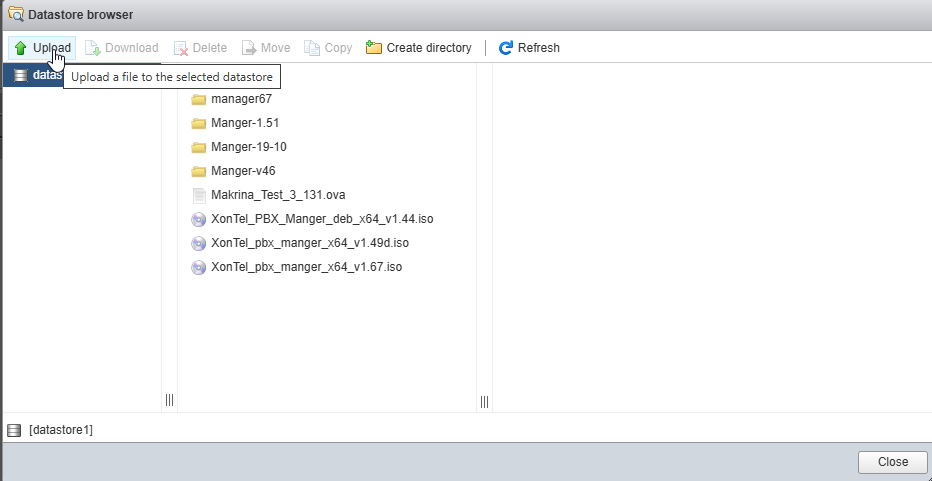
Upload the ISO to ESXi

1-Log in to your ESXi web interface.

2-Go to Storage > Select datastore > Datastore browser.

3-Create a new folder (optional) and upload the PBX ISO.
Create a New Virtual Machine

1-Click Create / Register VM.
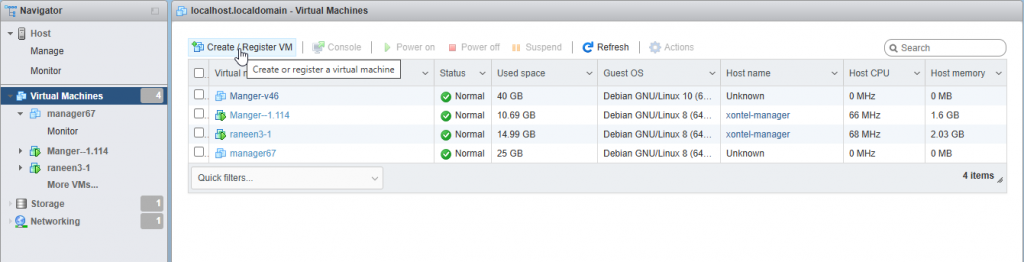
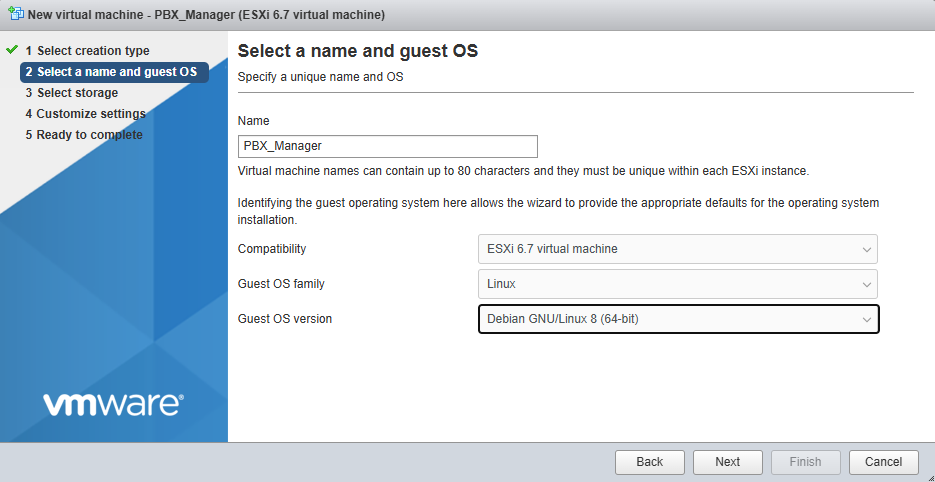
2-Select Create a new virtual machine.
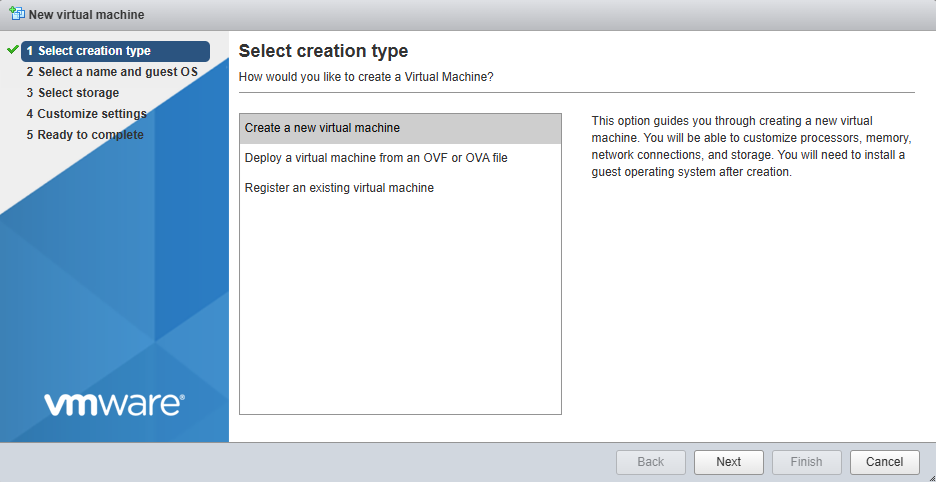
3-Enter VM name (e.g., PBX_Manager).

Select:

  • Compatibility: ESXI
  • Guest OS Family: Linux
  • Guest OS Version: Debian

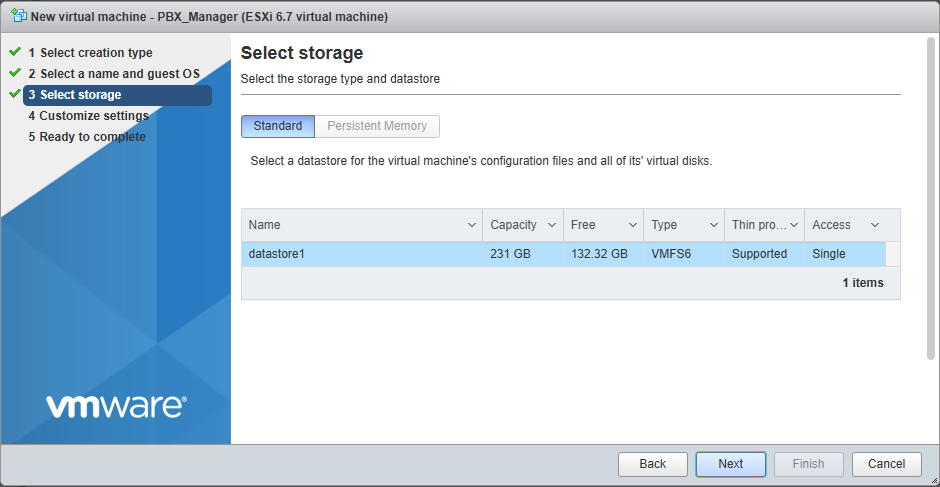
4-Storage

Select a datastore for the virtual machine.
5-Configure VM Hardware

  • CPU: Allocate resources based on your expected system usage
  • Memory: Allocate memory according to the expected system usage
  • Hard Disk: Provision storage based on anticipated system requirements
  • Network Adapter: VMXNET3 or E1000
  • CD/DVD Drive: Select the uploaded PBX ISO
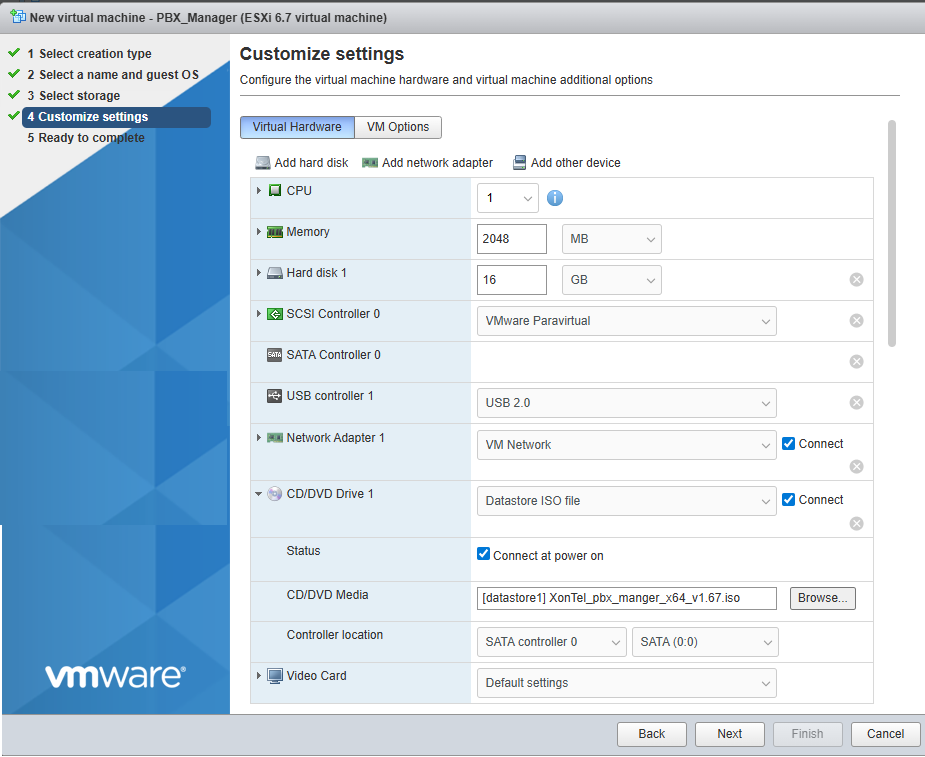
Save the configuration.

Boot the VM and Start Installation

1-Power on the VM.

2-Open the console.

3-Select Install XonTel Manager from the boot menu.
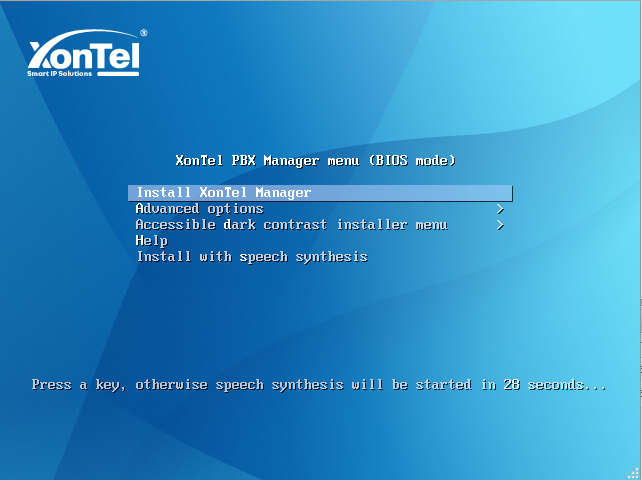
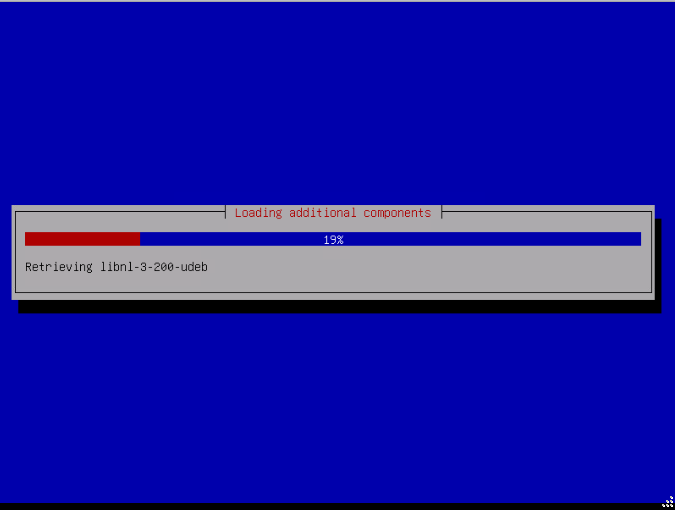
Follow the On-Screen Installation Steps

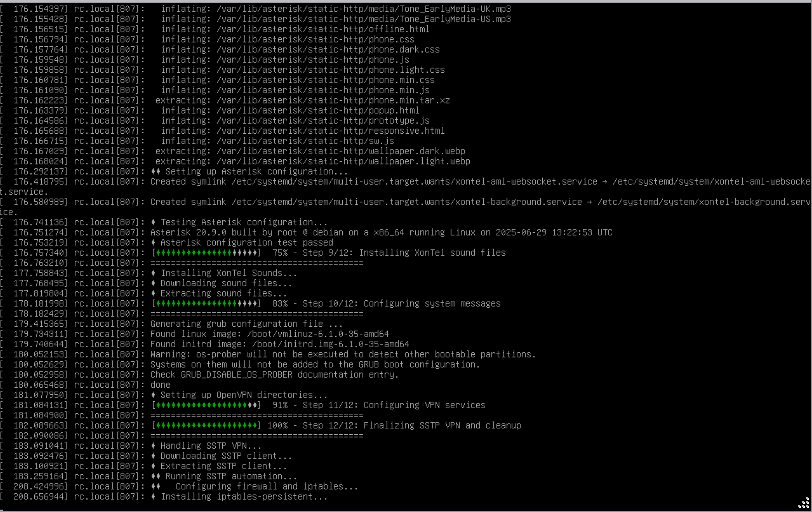
The installer will perform actions such as:

  • Installing system dependencies
  • Configuring Asterisk and PostgreSQL
  • Setting firewall rules
  • Enabling services

At the end, you should see Installation Completed Successfully. The system will reboot automatically.
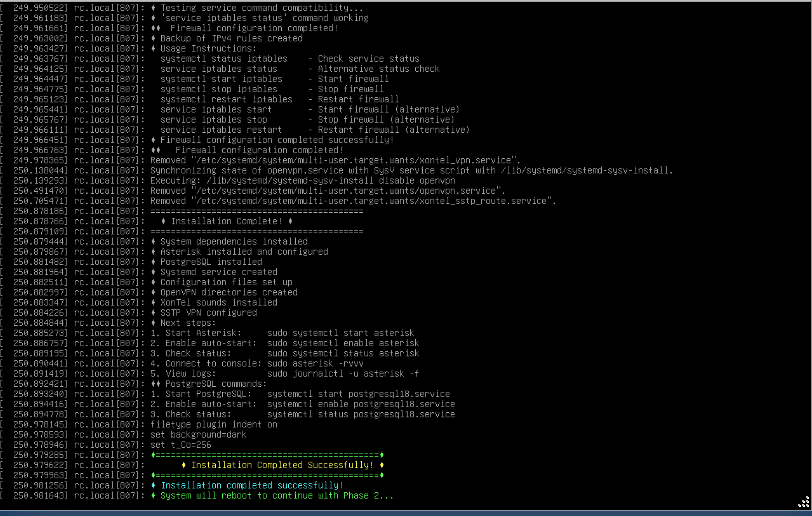
First Login After Reboot

Once the system boots, you will see a login screen:

Enter SSH username and password.
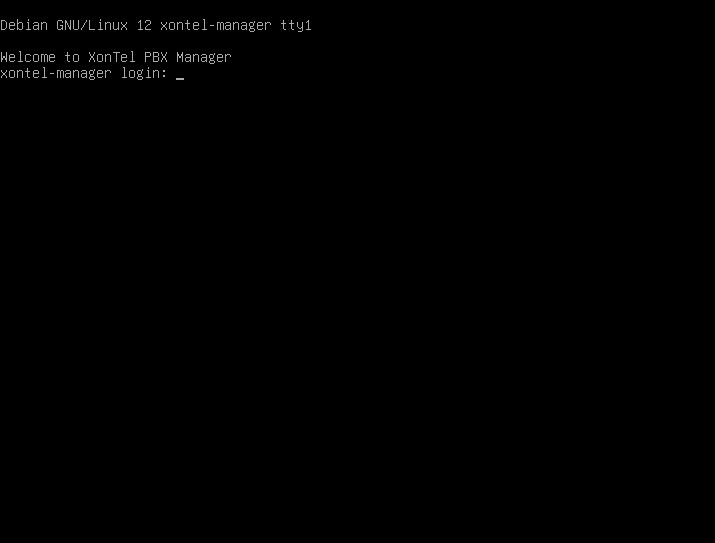
Access the Web Interface
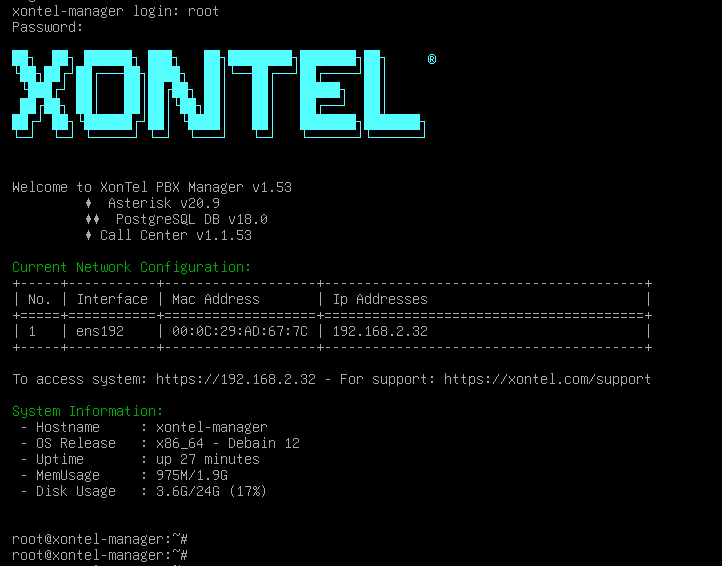
Open a browser and navigate to:

https://192.168.2.32

Was this helpful?

Yes  No

Didn't find your answer? تواصل معنا

Previously
Installation
Up Next
License Activation & Verification

المنتجات

Menu
  • هواتف IP
  • زونتل
  • بوابات IP
  • الاتصال الداخلي IP
  • منتجات IP

خدمات

Menu
  • سنترال زونتل
  • كول سنتر زونتل
  • زونتل AI

الدعم

Menu
  • Wiki
  • إرسال التذكرة
  • التعليمات
  • الأدلة والبرامج الثابتة
  • كتالوج المنتجات
logo_invert

تصنيع أنظمة الهاتف IP و IP-PBX، وتطبيقات الهاتف المحمول وتطوير الويب، والخدمات السحابية.

حلول الشبكات وكاميرات المراقبة وأنظمة الأمن.

جميع الحقوق محفوظة لشركة XonTel © 2025

Facebook Twitter Instagram Linkedin Youtube Whatsapp