• XonTel PBX Manager
    • PBX V 1.X.X
      • Overview
        • Installation
          • PBX ISO Installation on ESXi
        • License Activation & Verification
        • Log in to the PBX
      • System
        • Authentication
          • Users
          • Groups
          • Permissions
        • Network
          • Network Interface
          • Network Routes
          • Network Host
          • Static Routes
          • Diagnostic Tools
        • Host Name
        • Email
        • Security
          • IP Tables
          • Fail2ban
        • Dynamic DNS
        • VPN
          • Open VPN
          • SSTP
        • Maintenance
        • LDAP
      • PBX
        • Extensions
        • Trunks
        • Call controls
          • Inbound Routes
          • Outbound Routes
          • Time Conditions
          • Auto CLIP
        • Call Features
          • IVR
          • Ring Group
          • Queue
          • Paging/Intercom
          • Blacklist
        • Voice Prompts
        • Music On Hold
        • NAT
        • Status
        • CDR
        • Feature Code
        • Recording Storage
        • Transport
      • Event Center
        • Session Timeout
        • Activity Log
    • PBX V 2.X.X
      • Overview
        • Installation
          • PBX ISO Installation on ESXi
        • License Activation & Verification
        • Log in to the PBX
      • Dashboard
      • Extensions
      • Trunks
      • PBX Features
        • Call Features
          • IVR
          • Ring Group
          • Paging/Intercom
          • Blacklist
        • Call controls
          • Inbound Routes
          • Outbound Routes
          • Time Conditions
          • Auto CLIP
        • Feature Code
      • Voice & Audio
        • Voice Prompts
        • Music On Hold
        • Language
      • Queues
        • Queue List
      • CDRs
      • SIP Settings
        • NAT
        • Transport
      • System
        • Network
          • Network Interface
          • Network Routes
          • Network Host
          • Static Routes
          • Diagnostic Tools
        • VPN
          • Open VPN
          • SSTP
        • Dynamic DNS
        • SMTP Settings
        • Host Name
        • LDAP
        • Session Timeout
        • Storage
      • Security
        • Firewall
  • كول سنتر زونتل
    • Call Center V 1.X.X
      • Overview
        • Installation
        • Log in to the call center
        • License Activation & Verification
      • Dashboard
        • Agent Insights
        • Inbound calls
        • Outbound calls
        • My Dashboard
      • Call Center Management
        • Missed Call Actions
          • Missed Calls Actions History
          • Missed Call Actions
          • Missed Calls Actions Logs
        • Type of Break
        • Widgets
        • CDRs
        • CDR Survey Questions
        • Queues
        • Queue Logs
        • Queues Evaluation
        • Trunk
        • External Lookup
      • Contacts Management
        • Contacts
        • Contact Groups
        • Companies
        • Contact Custom fields
        • Customer Journey
      • Authentication
        • Users
          • Admin
          • Supervisor
          • Agent
        • Groups
        • Permissions
        • Add End User
      • Applications
        • Ticket Managements
          • Categories
            • Sub Categories
          • Create Ticket
          • Tickets List
          • Reminder Settings
          • Dashboards
          • Ticket Statistics
          • Tickets CCs
          • Follow Up
          • Custom Fields
          • Notifications Templates
          • Ticket Logs
        • SMS
          • SMS Message
          • Bulk SMS
          • SMS Templates
        • Email Management
          • Outgoing Emails
          • Incoming Emails
          • Attachments
          • Templates
          • Teams
        • Auto Dialer
          • Dial Teams
          • Auto Dialer Log
          • Auto Dialer Status
        • Web Chat
          • Dashboard
          • Offline Messages
          • Web Chat Logs
        • Queue Evaluation
          • Queues Evaluation Level
          • Queues Evaluation
        • Social Media
          • Social Media Teams
          • Social Media Sessions Tracker
          • WhatsApp
        • Agent Chat
      • Reports
        • Generate Reports
      • Settings
        • Site Administration
        • Email Settings
        • Email Channel Mailbox
        • Email Channel Outbox
        • Email Logger
        • Web Chat Settings
        • SMS Gateway
        • ODBC Settings
        • System Parameters
        • Updates
        • Https Certification
        • Web Phone Configuration
        • Web Logo Settings
        • End User Logo
      • Block
        • Blocked Word
        • Block Settings
      • Status
      • Session Control
      • Activity Log
    • Call Center V 2.X.X

License Activation & Verification

49 views 0

Written by xontel_admin
يوليو 5, 2025

🔐 License Activation

To activate your system’s license, you need to follow a simple verification and setup process with the XonTel support team. This guide outlines the steps required after the first login, and how future license changes are managed.

📥 Initial Activation Process

After logging in for the first time, follow these steps to activate your license:
  1. Obtain Your Keys
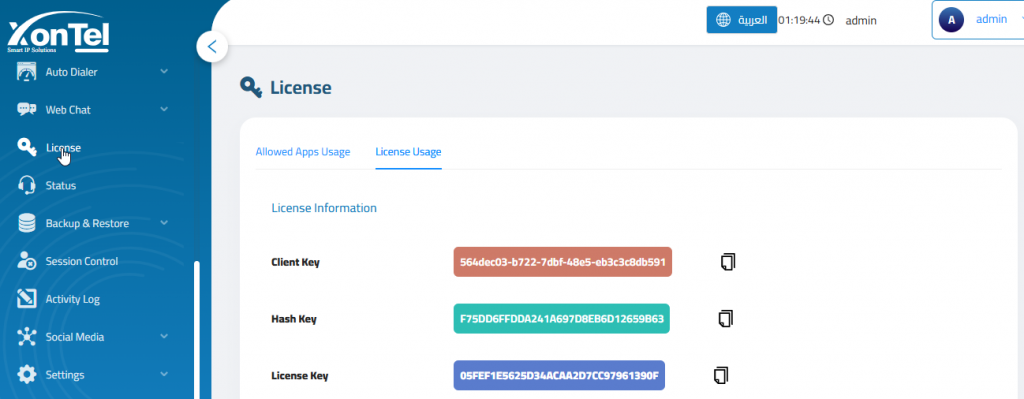
    Navigate to License → License Usage to view the following:
    • Client Key
    • Hash Key
    • License Key
  2. Send Keys to XonTel
    Provide the Client Key and Hash Key to the XonTel support team. These are required to register your server on the licensing server.
  3. Receive License Key
    Once verified, the XonTel team will activate your license and confirm your entitlement.
  4. Enter License Key
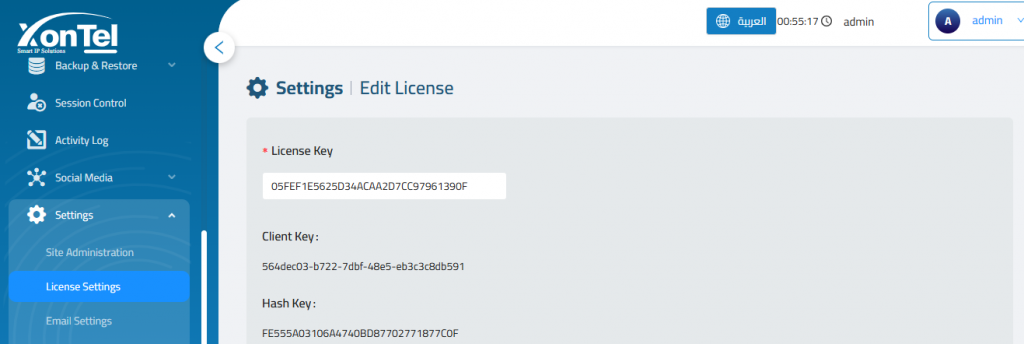
    Go to Settings → Edit License and paste the received License Key in the designated field.
📡 Updating License Features

To activate additional features or make changes to your license (e.g., enabling a new app or increasing agent/webdialer capacity):

  1. Contact XonTel Support with your requirements.
  2. XonTel will update your license accordingly on the server.
  3. No need to re-enter the license key — the system syncs with the server and applies the changes automatically.

📋 Viewing Active Licensed Applications

Once your system license is active, you can easily monitor which applications are currently licensed and active.

To view active apps:

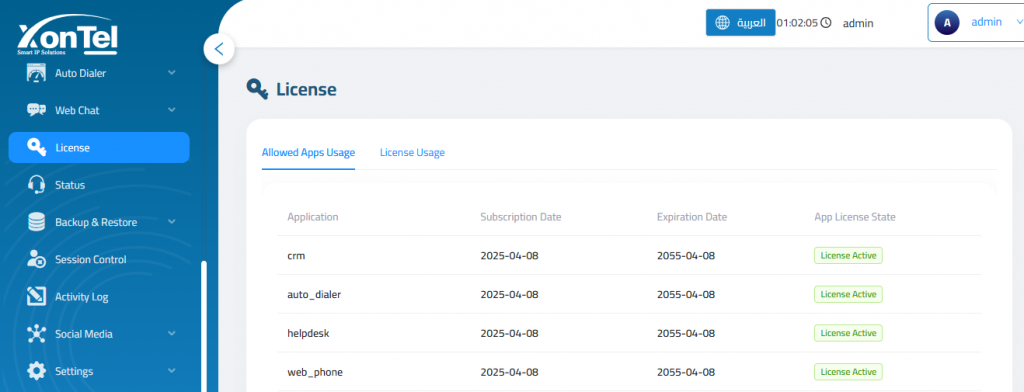
  1. Navigate to License → Allowed Apps Usage.
  2. Here, you’ll see a list of licensed applications with the following details:
    • Application Name (e.g., CRM, Auto Dialer, Helpdesk, Web Phone)
    • Subscription Date (when the license was activated)
    • Expiration Date (validity of the license)
    • App License State (e.g., License Active)
👥 Viewing Licensed Capacity (Agents & WebPhone)

To monitor your current license limits for agent and WebPhone usage:
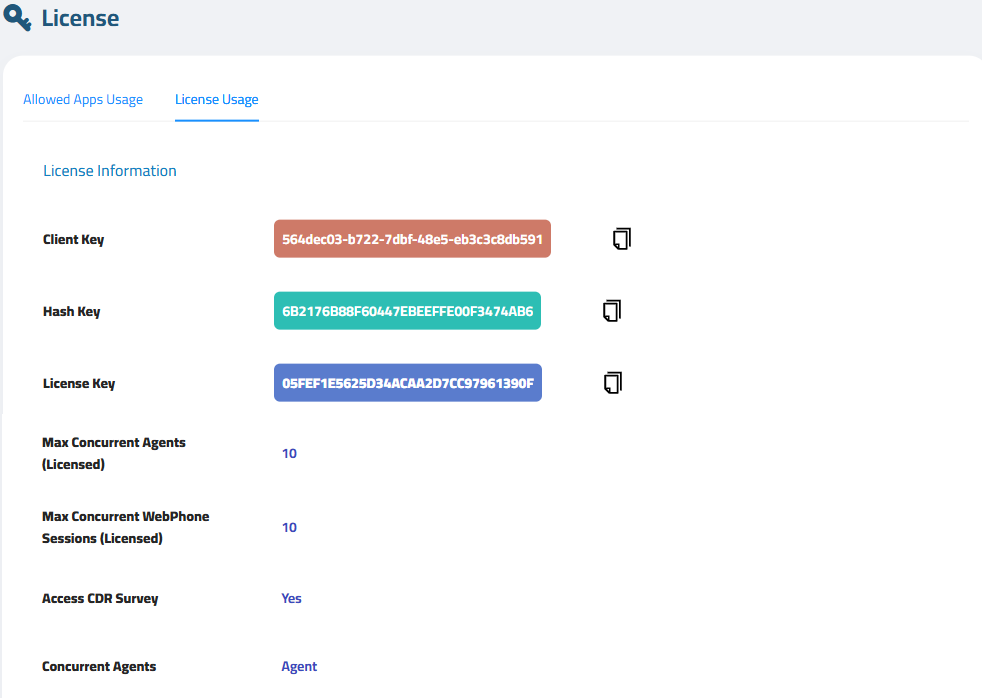
Navigate to License → License Usage.

  • Max Concurrent Agents (Licensed): Total number of agents allowed to log in concurrently under the current license.
  • Max Concurrent WebPhone Sessions (Licensed): Maximum number of simultaneous web phone sessions permitted.
  • Access CDR Survey:Indicates whether CDR survey features are enabled (Yes or No).
  • Concurrent Agents: Agents who are currently logged in.
Was this helpful?

Yes  No

Didn't find your answer? تواصل معنا

Previously
Log in to the call center
Up Next
Dashboard
  • Copyright 2026 SmartWpThemes.com. All Rights Reserved