
The XonTel PBX system comes preconfigured with a built-in iptables firewall to protect your IP phone system from unauthorized access, fraudulent calls, and various types of network attacks. It enables the creation of custom iptables rules to control the traffic sent to and received from PBX devices.
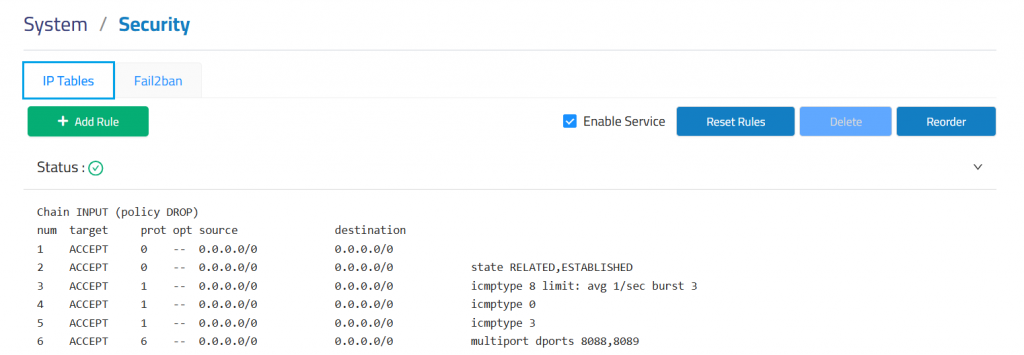
The system includes default rules that:
- Accept all internal traffic
- Block external traffic
- Block unauthorized ports
To manage iptables, first enable the service by checking the Enable Service option. Once enabled, you can create, delete, modify, disable, or reorder firewall rules. Be sure to click the Save button after each change; otherwise, the modifications will not take effect in the system.
Clicking Reset Rules will discard all changes and restore the firewall to the default XonTel rule set.
Add Rule
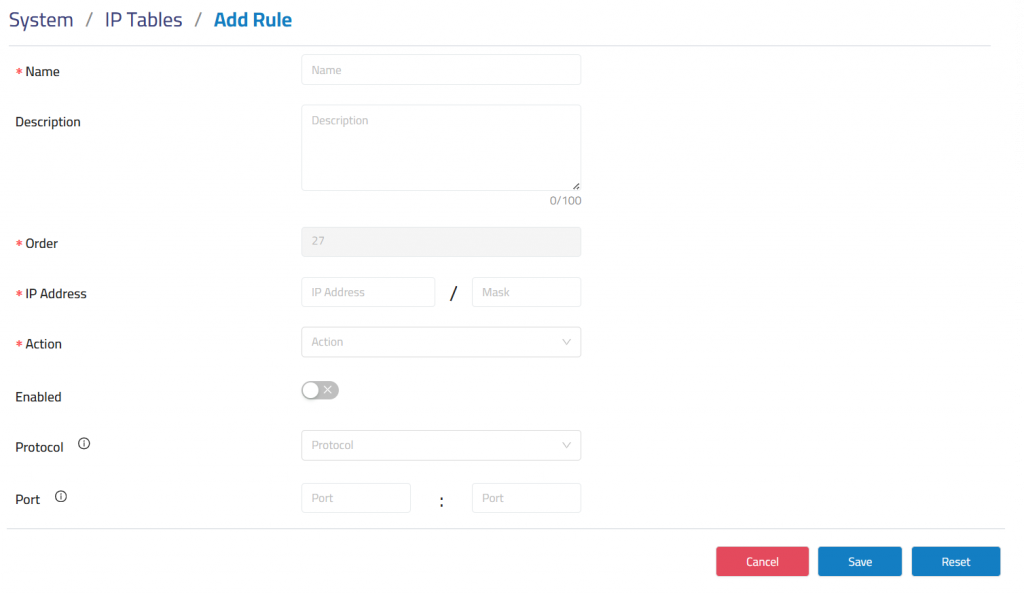
Name: Defines the name used to identify the firewall rule.
Description: Provides optional details about the purpose of the rule.
Order: Defines the rule priority. Rules are applied according to their order.
IP Address: Defines the IP address and mask used to match network traffic when IP Address is selected.
Protocol: Defines the protocol affected by the rule, such as TCP, UDP, or both.
Action: Defines the action applied to matching traffic, such as Accept or Reject access.
Enabled: Enables or disables the firewall rule without deleting it.
Protocol: Defines the protocol affected by the rule, such as TCP, UDP, or both.
Port: Defines the port or port range affected by the rule.
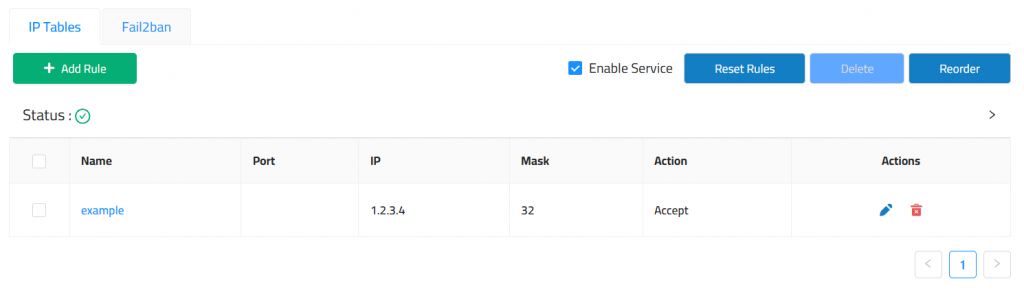
🔁 Reordering Rules
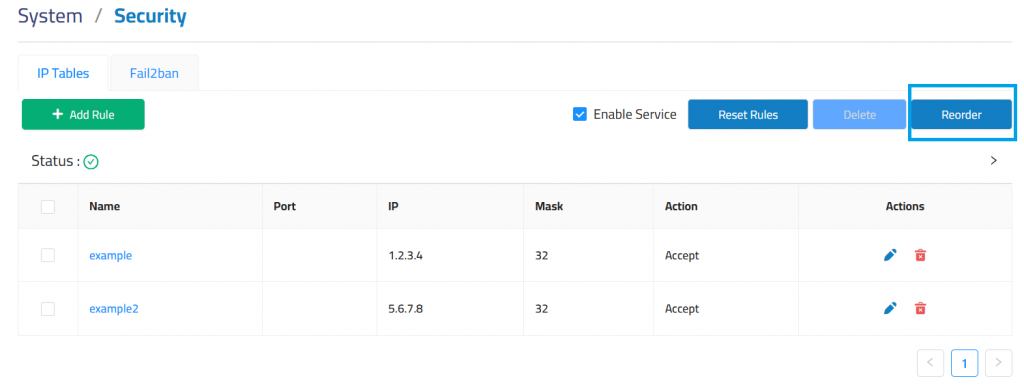
In IP tables rule management, the order of rules is critical — packets are evaluated top-down, and the first matching rule determines the action.
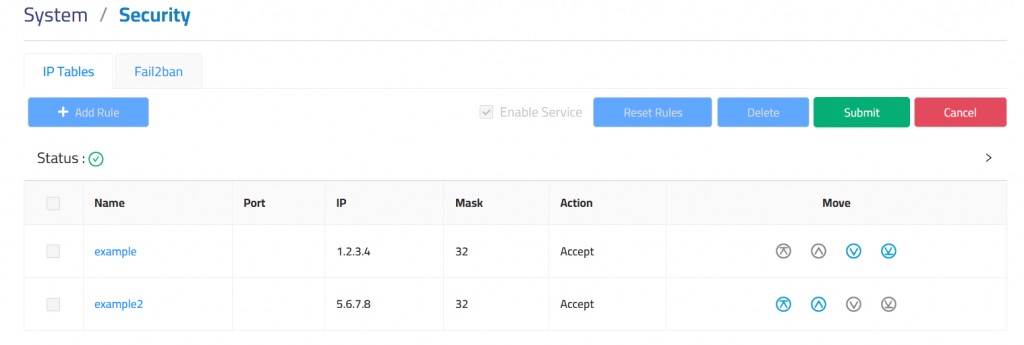
To reorder rules:
- Identify the rule to move.
- Use the Move icons:
- ⏫ Move to Top – Places rule at the top.
- 🔼 Move Up – Shifts rule one step higher.
- 🔽 Move Down – Shifts rule one step lower.
- ⏬ Move to Bottom – Sends rule to the end.
- Click the Submit button to apply changes.
- (Optional) Click Cancel to discard changes.