
Login Portal Overview
This is the main gateway for accessing your organization’s PBX Admin system and Call Center environment. It offers a clear, user-friendly starting point for different user roles to securely reach the tools they need.
Step 1:
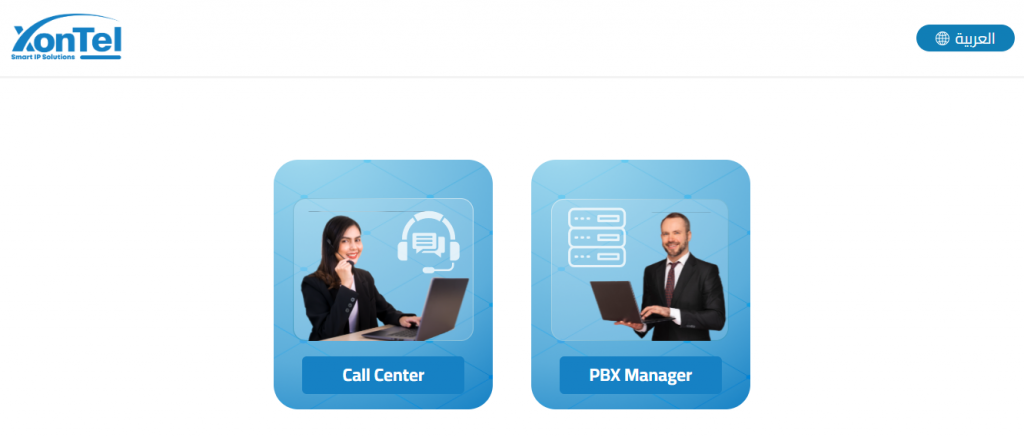
Click Call Center to move to the Call Center login page
Step 2:
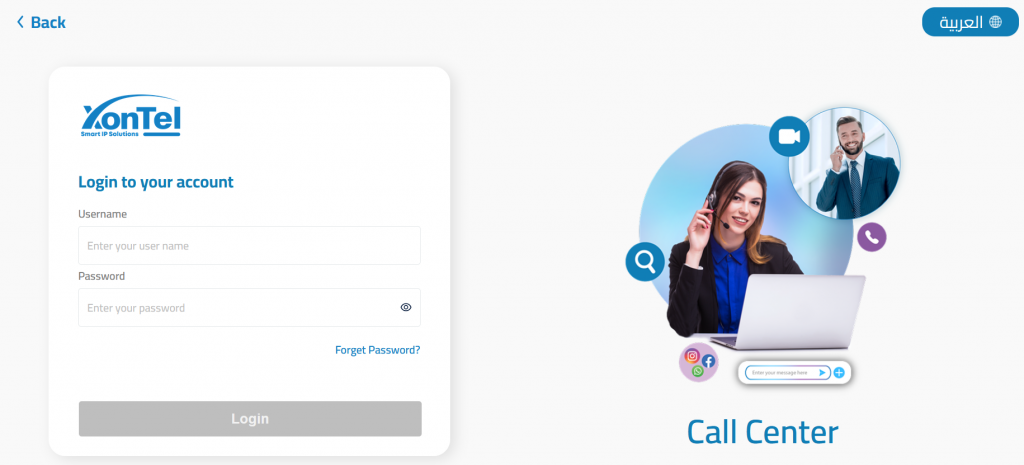
Enter your Username and Password in the provided fields.
Step 3:
Click the Login button to enter the Call Center Agent interface. From here, you can handle calls, view tickets, and communicate with customers efficiently.
Language Option
A convenient language switcher is available at the top right, allowing you to choose English or another supported language for a comfortable user experience.
User Menu Overview
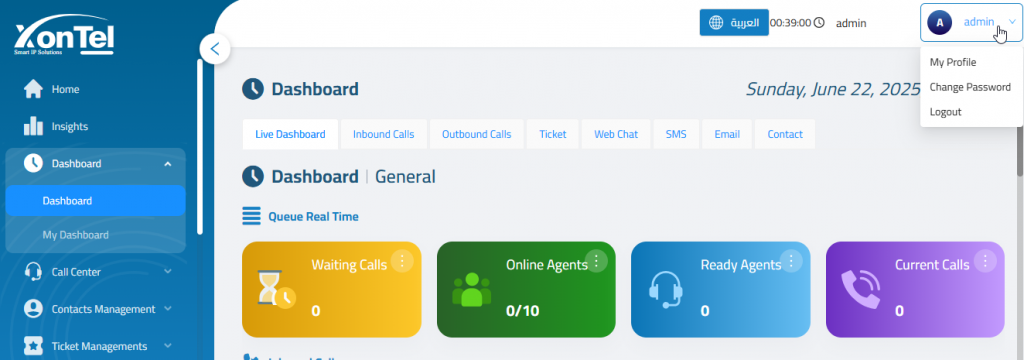
The User Menu is your personal control panel. From here, you can manage your profile, change your password, or securely log out of the system.
Editing Your Profile
Personal info
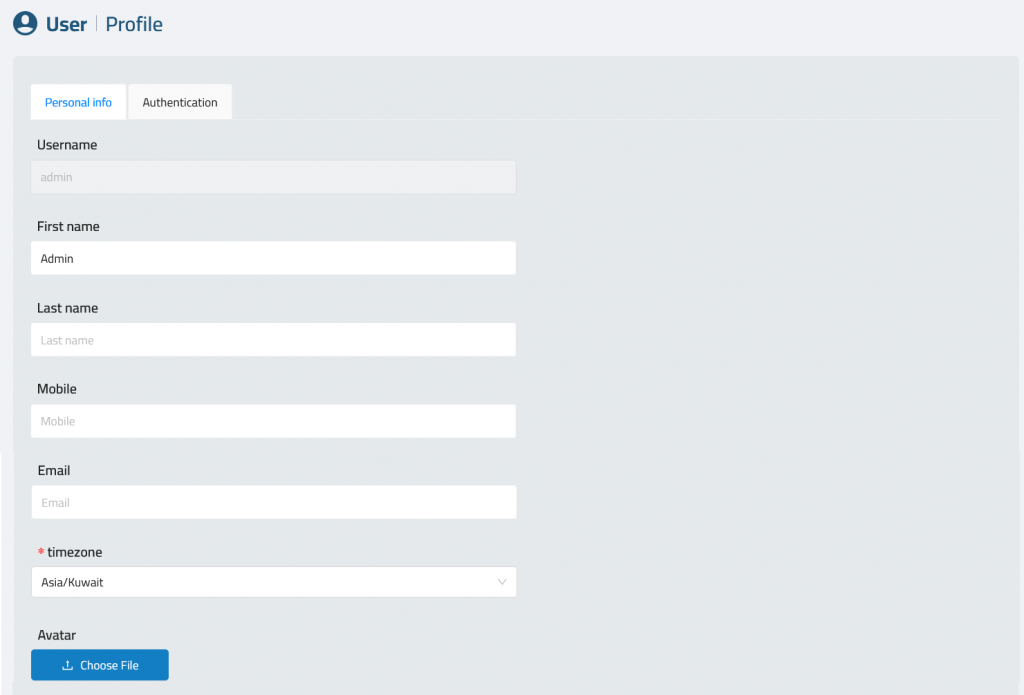
Inside Personal Info, you can update the following fields:
- User Name – This is fixed and cannot be changed (usually set by your system admin).
- First Name – Optional.
- Last Name – Optional.
- Mobile – Optional contact number.
- Email: Add your Email.
- Timezone: Select your timezone.
- Upload or change your Avatar image by clicking Choose File.
Authentication
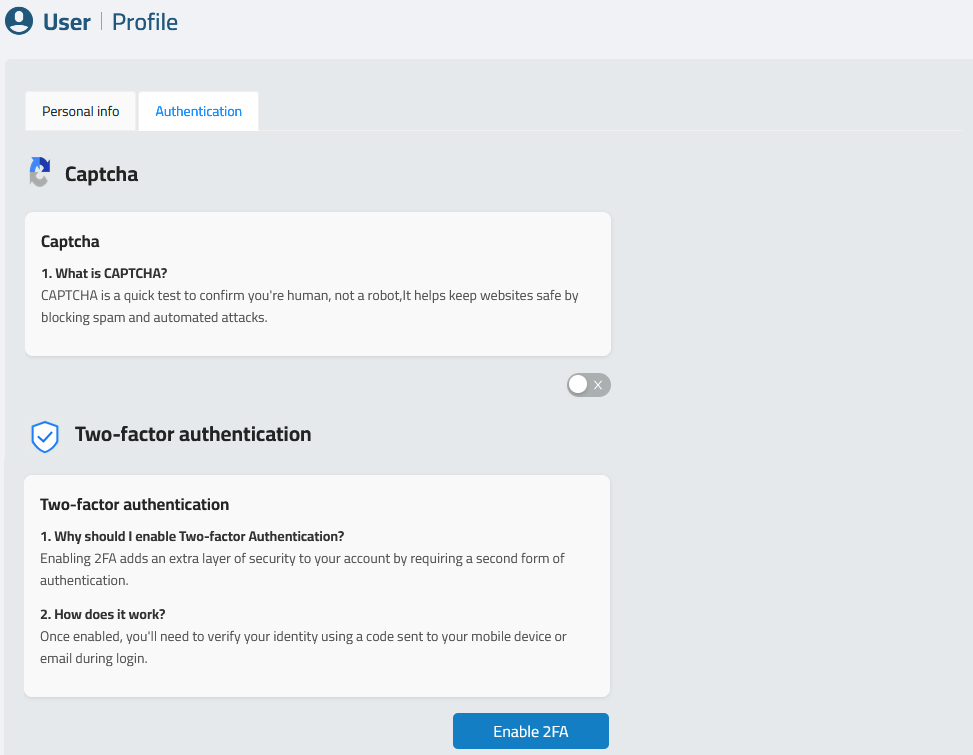
Each user can enhance their account security directly from their profile:
CAPTCHA
- Prevents automated bots from attempting unauthorized access.
- Toggle the switch to activate CAPTCHA for login.
During login:
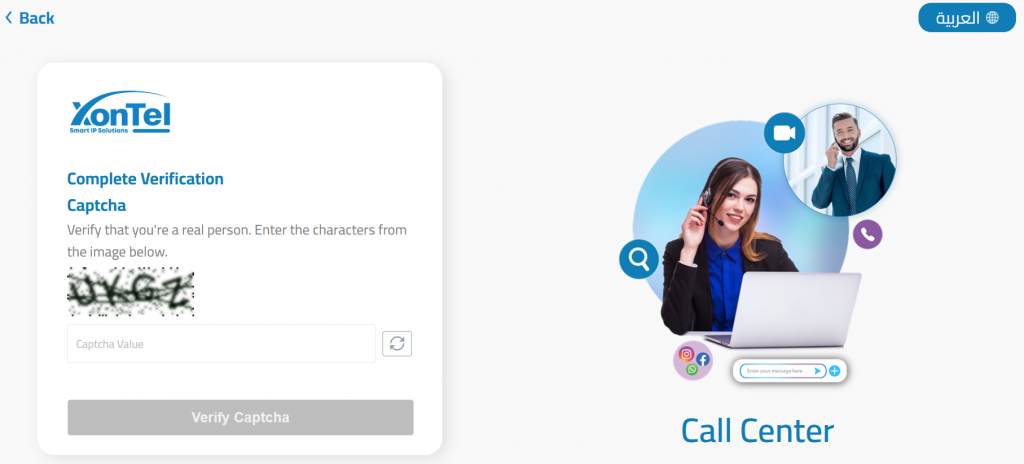
After entering your username and password, complete the CAPTCHA verification to confirm you are a valid user. Enter the characters exactly as shown in the image and click “Verify Captcha”.
Two-Factor Authentication (2FA)
- Adds an extra layer of protection by requiring a second verification step.
- Click Enable 2FA to start setup using an authenticator app.
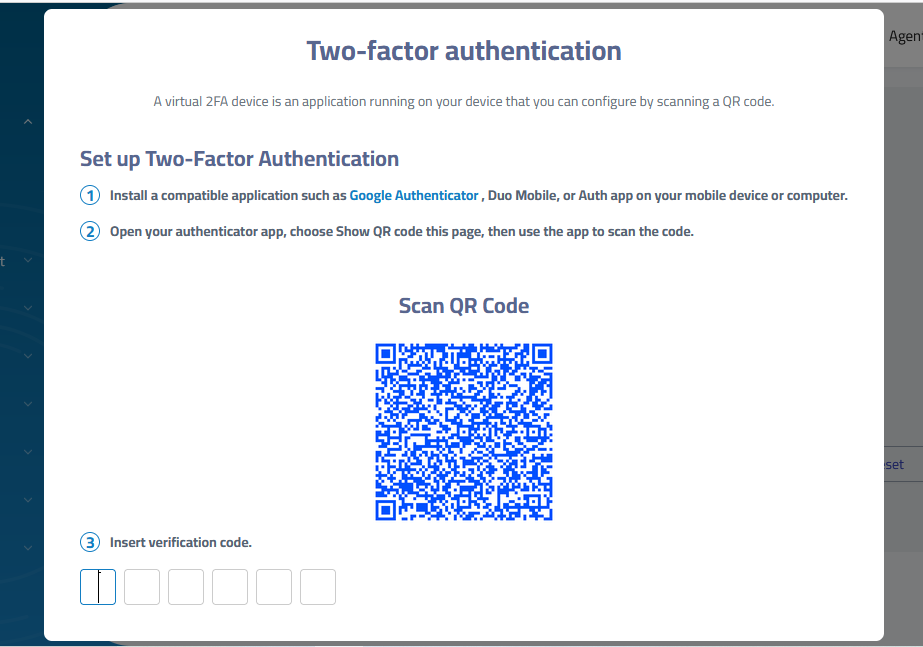
During login:
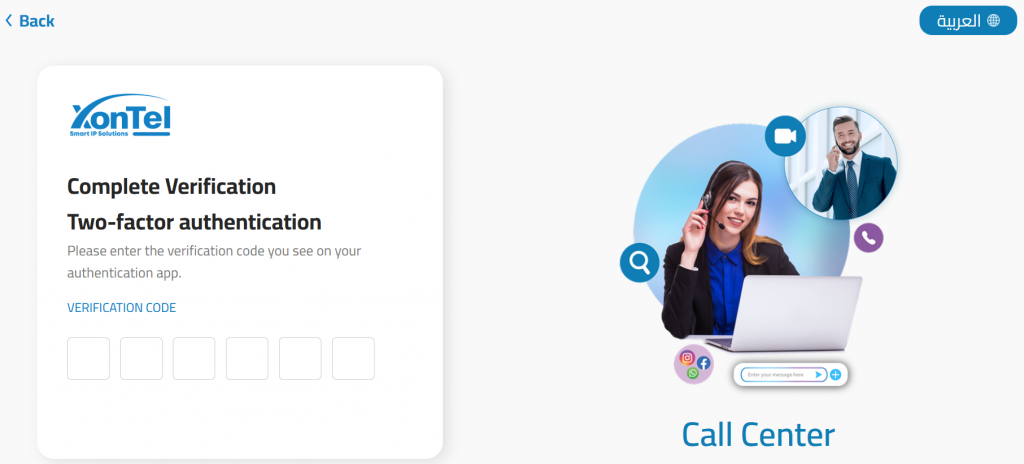
After entering your username and password, complete the CAPTCHA verification. If CAPTCHA is enabled (by user or admin), users are prompted to enter a 6-digit verification code from their authentication app (e.g., Google Authenticator or Microsoft Authenticator).
Note: Admins may enforce 2FA or CAPTCHA for specific roles from the admin panel.
Changing Password
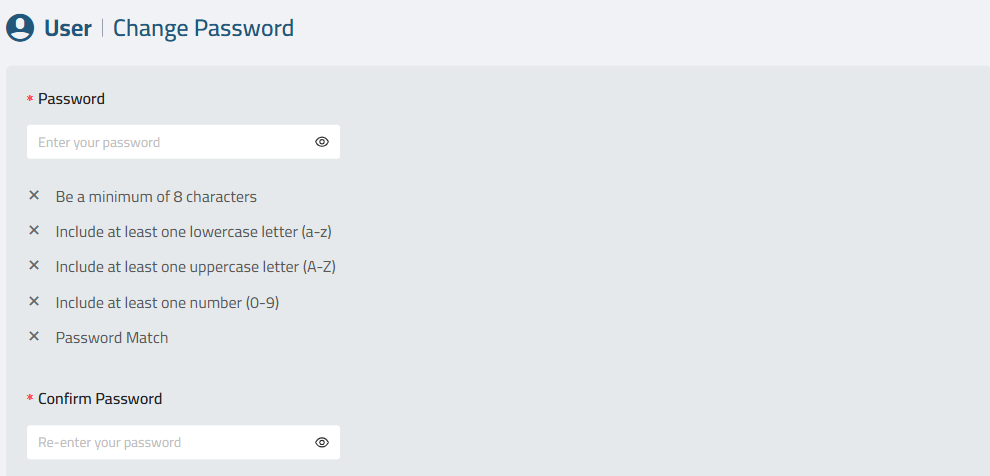
To keep your account secure, follow the password policy when creating a new password:
- Enter your New Password, ensuring it meets the security requirements:
- Minimum of 8 characters.
- At least one lowercase letter.
- At least one uppercase letter.
- At least one number.
- The new password and confirmation must match.
- Confirm the new password in the Confirm Password field.
- Submit the change.
Forget Password
Forgetting a password can happen to anyone. To ensure minimal disruption, XonTel’s Call Center platform provides a secure and straightforward password reset process.
Step 1: Navigate to the “Forget Password” Page
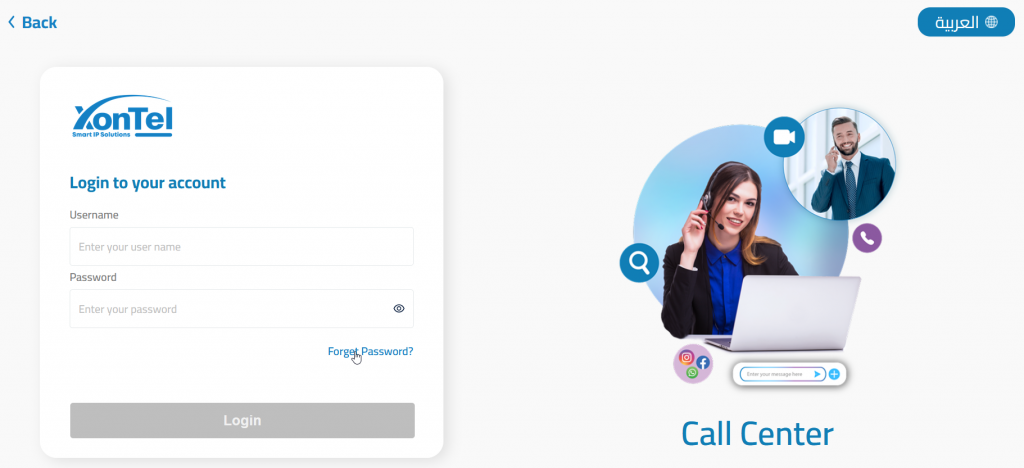
- On the login screen, click the “Forget Password?” link.
- You will be redirected to the Forget Password (Call Center) page.
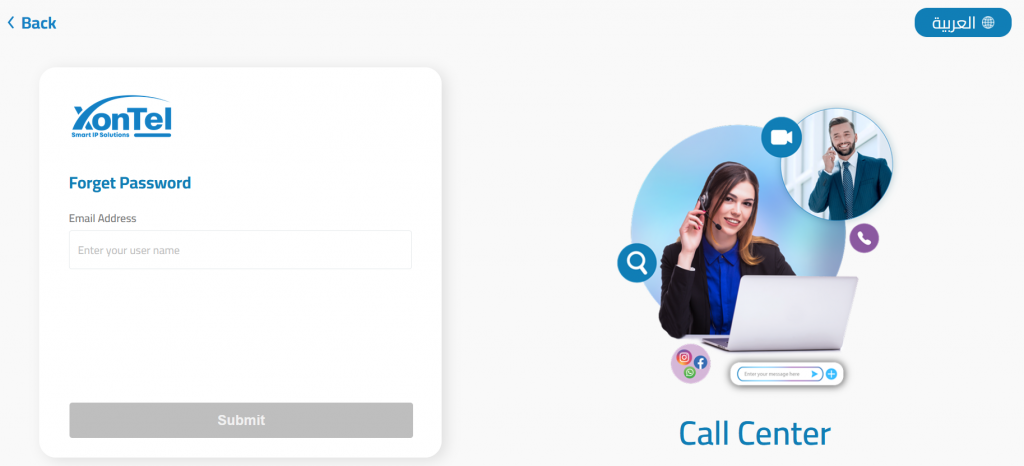
- Enter your registered email address in the input field.
- Click the “Submit” button.
Step 2: Check Your Email
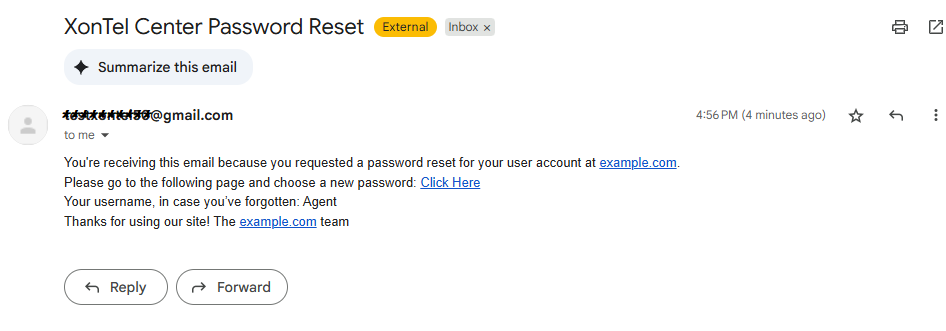
- You will receive an email titled “XonTel Center Password Reset” from the system.
- The email includes:
- A password reset link (
Click Here) - Your username (in case you forgot it)
- A password reset link (
Note: If the email doesn’t appear in your inbox, check your spam/junk folder.
Step 3: Set a New Password
Click the reset link from the email. You will be redirected to the Confirm Password page.
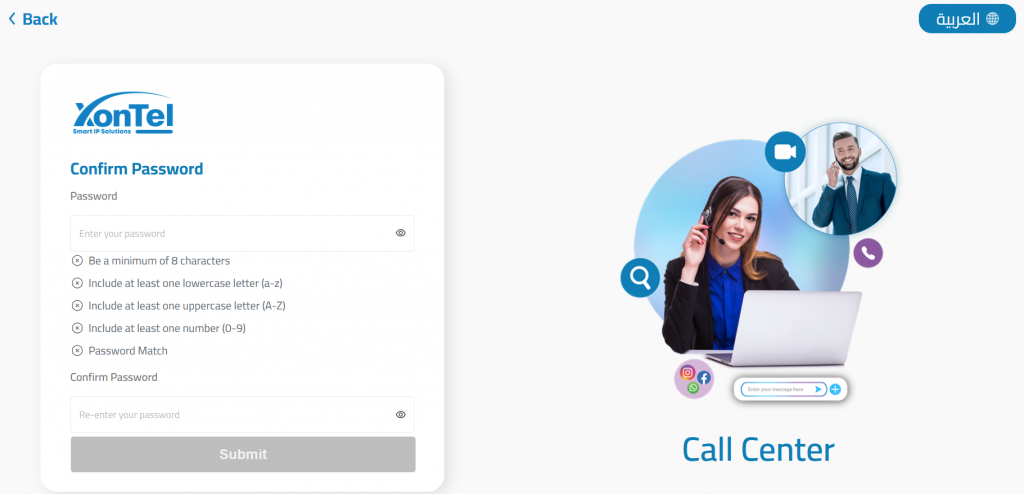
- Enter a new secure password that meets all the following requirements:
- Minimum of 8 characters
- At least one lowercase letter (a–z)
- At least one uppercase letter (A–Z)
- At least one number (0–9)
- Re-enter the new password in the Confirm Password field.
- Click Submit.