• XonTel Platform
    • XonTel PBX Manager
      • PBX V 1.X.X
        • Overview
          • Installation
            • PBX ISO Installation on ESXi
          • License Activation & Verification
          • Log in to the PBX
        • System
          • Authentication
            • Users
            • Groups
            • Permissions
          • Network
            • Network Interface
            • Network Routes
            • Network Host
            • Static Routes
            • Diagnostic Tools
          • Host Name
          • Email
          • Security
            • IP Tables
            • Fail2ban
          • Dynamic DNS
          • VPN
            • Open VPN
            • SSTP
          • Maintenance
          • LDAP
        • PBX
          • Extensions
          • Trunks
          • Call controls
            • Inbound Routes
            • Outbound Routes
            • Time Conditions
            • Auto CLIP
          • Call Features
            • IVR
            • Ring Group
            • Queue
            • Paging/Intercom
            • Blacklist
          • Voice Prompts
          • Music On Hold
          • NAT
          • Status
          • CDR
          • Feature Code
          • Recording Storage
          • Transport
        • Event Center
          • Session Timeout
          • Activity Log
      • PBX V 3.X.X
        • Overview
          • Installation
            • PBX ISO Installation on ESXi
          • First Login and Activation Steps
        • Features
          • Dashboard
          • Extensions
          • Trunks
          • PBX Features
            • Call Features
              • IVR
              • Ring Group
              • Paging/Intercom
              • Blacklist
            • Call controls
              • Inbound Routes
              • Outbound Routes
              • Time Conditions
              • Auto CLIP
            • Feature Code
          • Voice & Audio
            • Voice Prompts
            • Music On Hold
            • System Sound Language
          • Queues
          • CDRs
          • SIP Settings
            • NAT
            • Transport
          • System
            • Network
              • Network Interface
              • Network Routes
              • Network Host
              • Static Routes
              • Diagnostic Tools
            • VPN
              • Open VPN
              • SSTP
            • Dynamic DNS
            • SMTP Settings
            • Host Name
            • LDAP
            • Session Timeout
            • Storage
          • Security
            • Firewall
            • Fail2ban
          • Maintenance
            • Service Actions
            • Backup & Restore
          • Advanced Settings
          • Status
          • Audit Log
          • Authentication
            • Users
            • Groups
            • Permissions
    • XonTel Call Center
      • Call Center V 1.X.X
        • Overview
          • Installation
          • Log in to the call center
          • License Activation & Verification
        • Dashboard
          • Agent Insights
          • Inbound calls
          • Outbound calls
          • My Dashboard
        • Call Center Management
          • Missed Call Actions
            • Missed Calls Actions History
            • Missed Call Actions
            • Missed Calls Actions Logs
          • Type of Break
          • Widgets
          • CDRs
          • CDR Survey Questions
          • Queues
          • Queue Logs
          • Queues Evaluation
          • Trunk
          • External Lookup
        • Contacts Management
          • Contacts
          • Contact Groups
          • Companies
          • Contact Custom fields
          • Customer Journey
        • Authentication
          • Users
            • Admin
            • Supervisor
            • Agent
          • Groups
          • Permissions
          • Add End User
        • Applications
          • Ticket Managements
            • Categories
              • Sub Categories
            • Create Ticket
            • Tickets List
            • Reminder Settings
            • Dashboards
            • Ticket Statistics
            • Tickets CCs
            • Follow Up
            • Custom Fields
            • Notifications Templates
            • Ticket Logs
          • SMS
            • SMS Message
            • Bulk SMS
            • SMS Templates
          • Email Management
            • Outgoing Emails
            • Incoming Emails
            • Attachments
            • Templates
            • Teams
          • Auto Dialer
            • Dial Teams
            • Auto Dialer Log
            • Auto Dialer Status
          • Web Chat
            • Dashboard
            • Offline Messages
            • Web Chat Logs
          • Queue Evaluation
            • Queues Evaluation Level
            • Queues Evaluation
          • Social Media
            • Social Media Teams
            • Social Media Sessions Tracker
            • WhatsApp
          • Agent Chat
        • Reports
          • Generate Reports
        • Settings
          • Site Administration
          • Email Settings
          • Email Channel Mailbox
          • Email Channel Outbox
          • Email Logger
          • Web Chat Settings
          • SMS Gateway
          • ODBC Settings
          • System Parameters
          • Updates
          • Https Certification
          • Web Phone Configuration
          • Web Logo Settings
          • End User Logo
        • Block
          • Blocked Word
          • Block Settings
        • Status
        • Session Control
        • Activity Log
      • Call Center V 3.X.X
        • Call Center Tools
          • Agent Status Logs
          • Call Tags
          • Missed Call Management
          • Custom Widgets
          • Type Of Break
          • External Lookup
        • Contacts
          • Contacts Dashboard
          • All Contacts
          • Contact Groups
          • Contact Tags
          • Companies
          • Custom Fields
          • Customer Journey
        • Reports
        • Applications
          • Tickets
            • Dashboard
            • All tickets
            • Categories
              • Subcategories
            • Ticket CC
            • Reminder Settings
            • Ticket Follow Up
            • Ticket Custom Fields
            • Notification Templates
            • Ticket Log
          • SMS
            • Dashboard
            • SMS Messages
            • Bulk SMS
            • SMS Templates
            • SMS Settings
          • Email Channel
            • Dashboard
            • Outgoing Emails
            • Incoming Emails
            • Attachments
            • Email Templates
            • Teams
            • Mailbox Settings
            • Outbox Settings
          • Web Chat
            • Dashboard
          • Auto Dialer
            • Auto Dialer
            • Dial Teams
            • Auto Dialer Log
            • Auto Dialer Status
          • Queue Evaluation
        • Settings
          • Site Administration
          • Email Settings
          • Email Logger
          • ODBC Settings
          • System Parameters
          • HTTPS Certification
          • Web Logo Settings
          • End User Logo
        • Session Control
    • Versions & Releases
      • v1.x.x
        • v1.1.x
        • v1.2.x
        • v1.3.x
        • v1.4.x
        • v1.5.x
        • v1.6.x
        • v1.7.x
        • v1.8.x
        • v1.9.x
        • v1.10.x
        • v1.11.x
      • v2.x.x
        • v2.0.X
          • v2.0.4
      • v3.x.x
        • v3.0.x
        • v3.1.x
        • v3.2.x
        • v3.3.x

All tickets

39 views 0

Written by xontel_admin
August 29, 2026

The Tickets section is used to create, manage, track, and review tickets within the Call Center system. It allows administrators and supervisors to organize requests, issues, tasks, or follow-up cases, assign tickets to agents, manage priorities and due dates, and maintain related activity from a centralized management interface.

This section helps administrators and supervisors maintain structured workflows, monitor ticket progress, and ensure that each case is assigned, followed up, and completed efficiently.
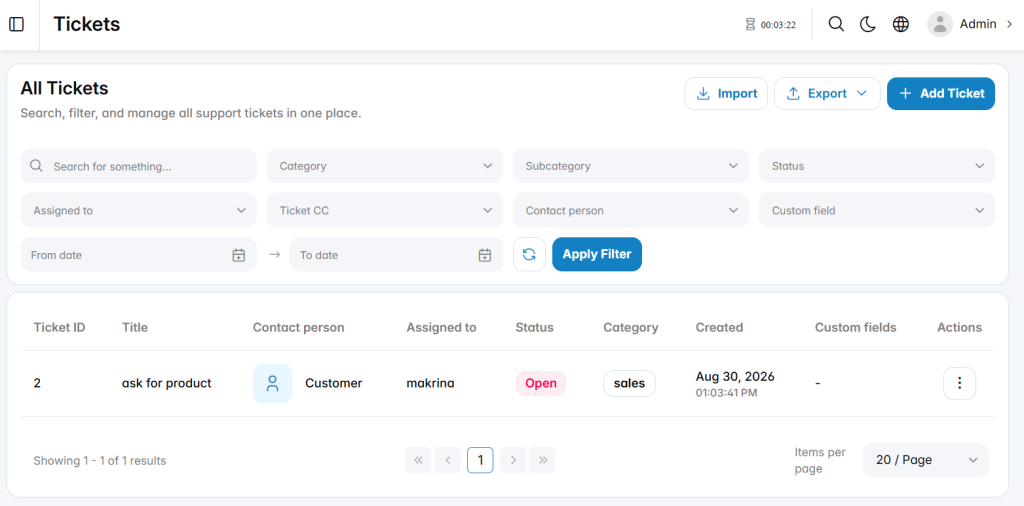
Add Ticket

The Add Ticket section is used to create a new ticket.
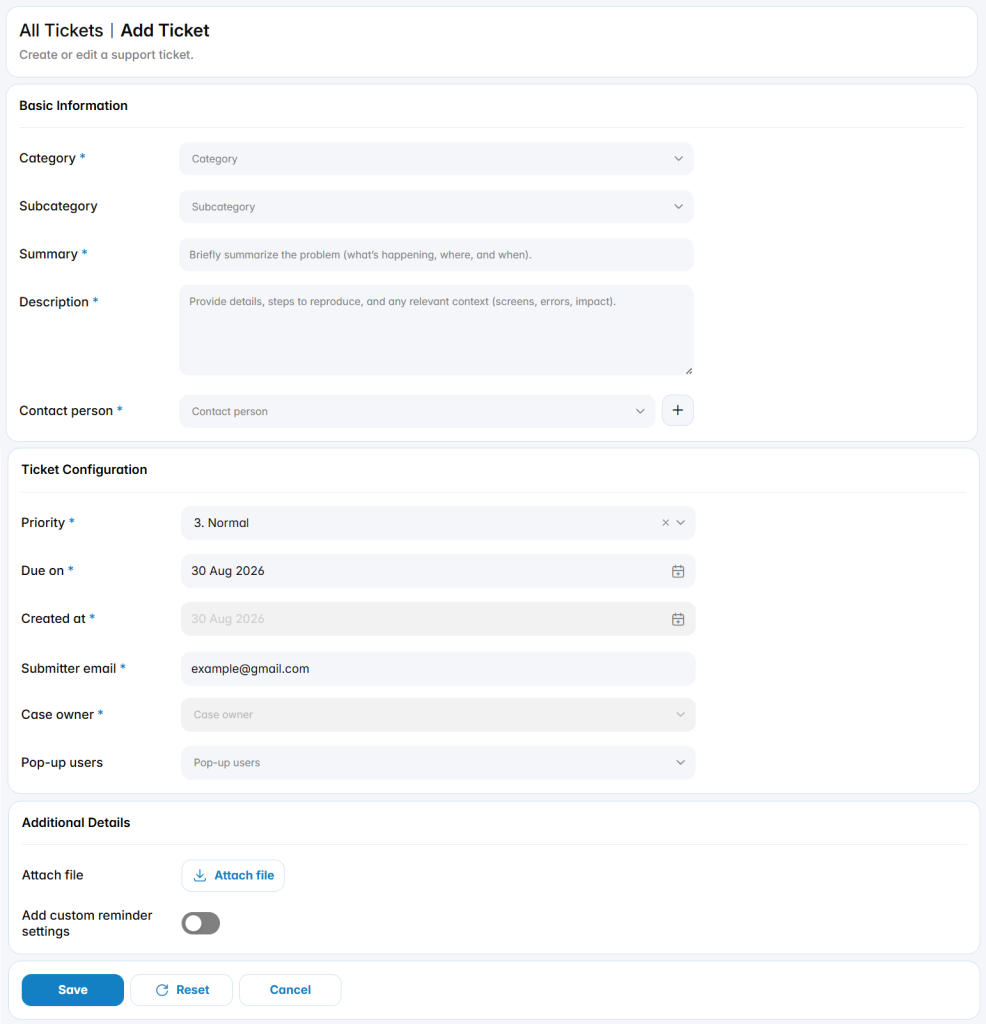
Basic Information

Category: Specifies the main category assigned to the ticket.

Subcategory: Specifies the related subcategory when available.

Summary: Defines a short description of the ticket.

Description: Defines detailed information related to the request, issue, task, or case.

Contact Person: Specifies the contact associated with the ticket.

Ticket Configuration

Priority: Specifies the priority level assigned to the ticket.

Due On: Defines the expected due date for the ticket.

Created At: Displays or defines the ticket creation date.

Submitter Email: Defines the email address of the ticket submitter.

Case Owner: Specifies the user responsible for managing the ticket.

Pop-up Users: Specifies users who should receive the configured ticket pop-up behavior.

Additional Details

Attach File: Adds supporting files to the ticket.

Add Custom Reminder Settings: Enables additional reminder configuration for the ticket.

View Ticket

The View Ticket section is used to view a ticket details.
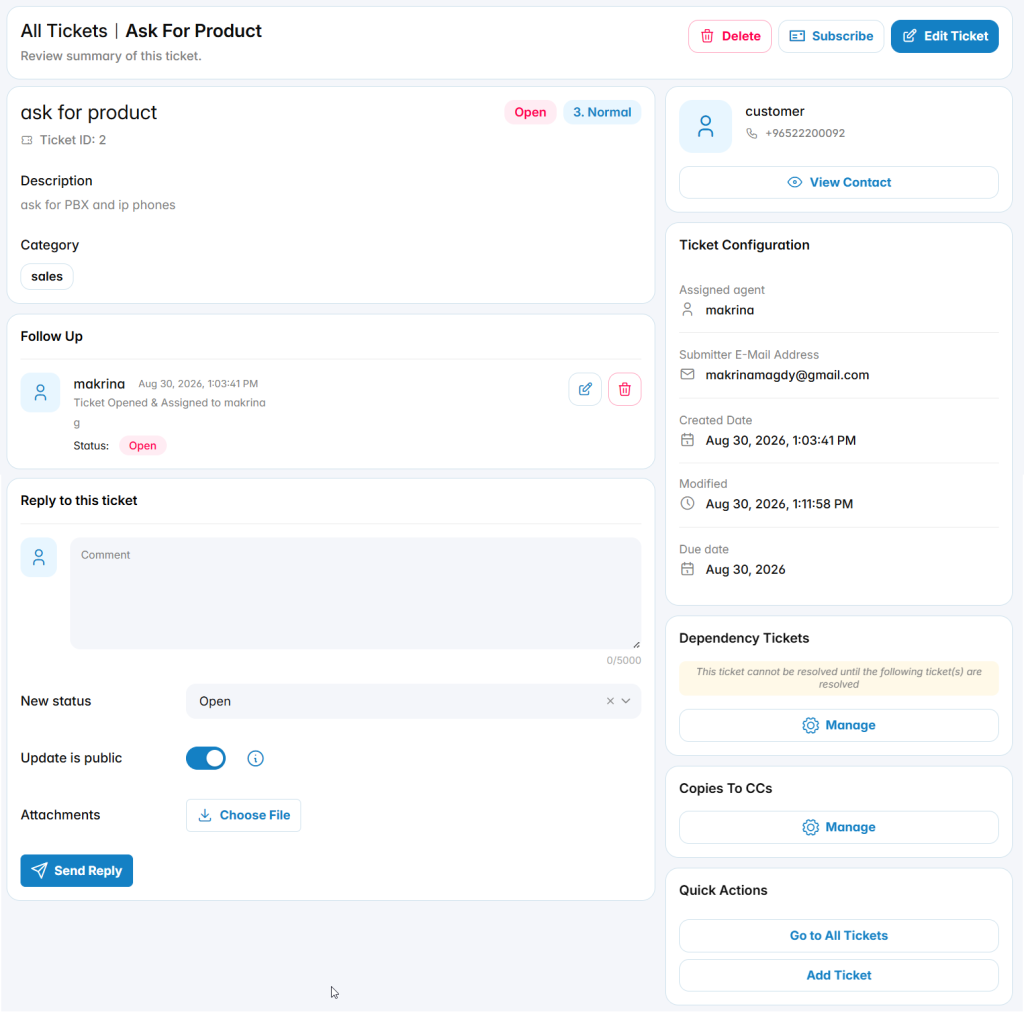
Follow Up

The Follow Up section displays the history of ticket updates and status changes.

Each follow-up entry can include the user, date, update details, and resulting ticket status.

Reply to Ticket

The reply area allows users to add a new update to the ticket.

Comment: Defines the update or reply added to the ticket.

New Status: Specifies the ticket status that should be applied with the reply.

Update Is Public: Controls whether the update is visible as a public ticket update.

Attachments: Adds files to the reply.

Send Reply: Stores and sends the ticket update.

Dependency Tickets

The Dependency Tickets section is used to link tickets that must be resolved before the current ticket can be completed.
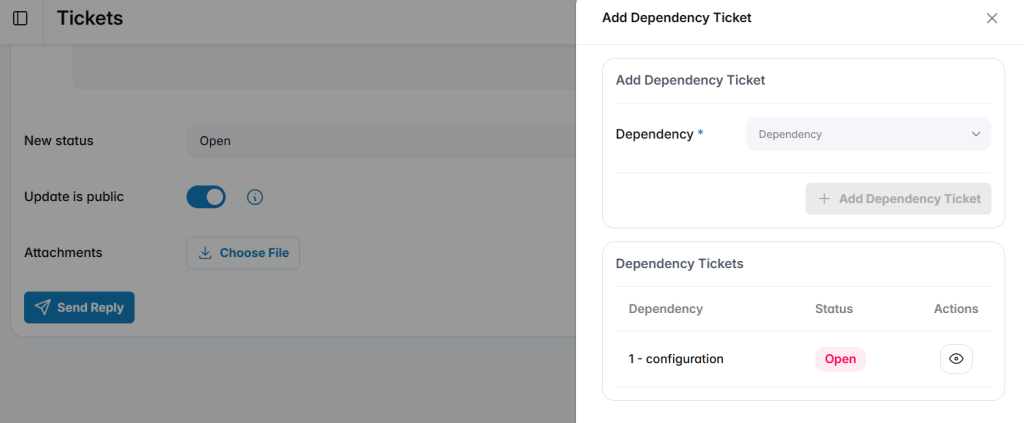
Dependency: Specifies the ticket that the current ticket depends on.

Status: Displays the current status of the dependency ticket.

View: Opens the linked dependency ticket.

A dependency can be used when one ticket cannot be resolved until another related ticket is completed.

Ticket CCs

The Ticket CCs section is used to provide additional users or email recipients with access to ticket information.

users can add CCs either by selecting a system user or by specifying an email address.
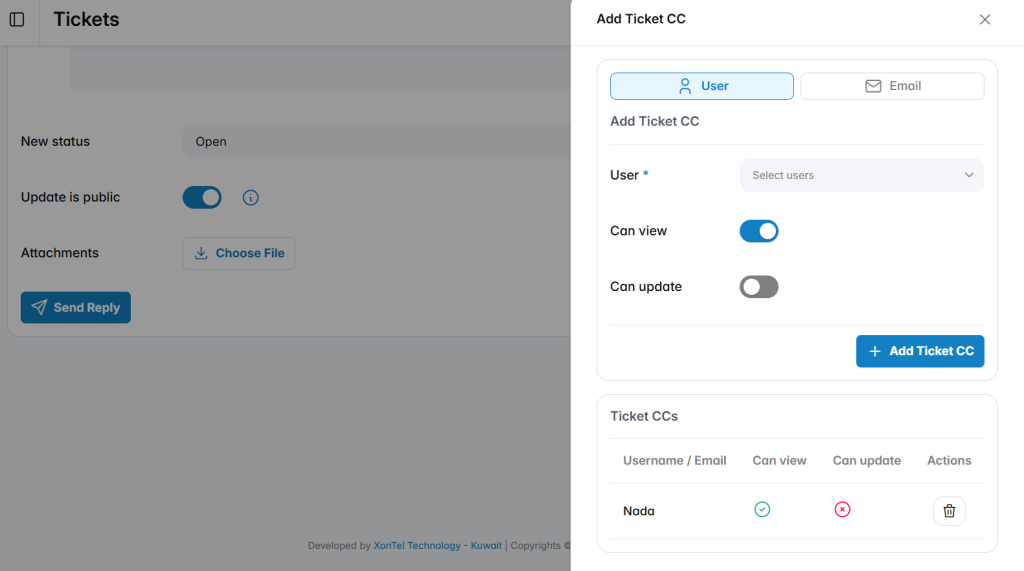
User / Email: Specifies the user or email address added to the ticket.

Can View: Controls whether the selected CC can view the ticket.

Can Update: Controls whether the selected CC can update the ticket.

Add Ticket CC: Adds the selected user or email address with the configured permissions.

Delete: Removes the CC from the ticket.

Quick Actions

Go to All Tickets: Returns to the complete ticket list.

Add Ticket: Creates a new ticket.

Was this helpful?

Yes  No

Didn't find your answer? Contact Us

Previously
Dashboard
Up Next
Categories
  • Copyright 2026 SmartWpThemes.com. All Rights Reserved