
The Add Ticket form enables users to report issues by providing detailed information. It gathers all required data to ensure proper classification, prioritization, assignment, and tracking of tickets from creation through resolution.
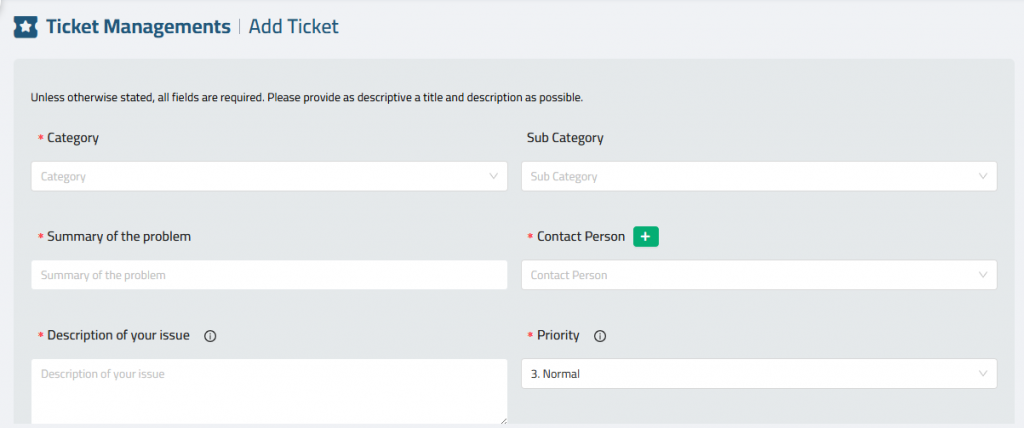
Category: Select the primary category for the issue (e.g., Sales, Support).
Sub Category: Choose a sub-category if available for more specific classification.
Summary of the problem: A concise title summarizing the issue.
Contact Person: Select or add the person who reported the issue.
Description of your issue (required): A detailed explanation of the issue (max 5000 characters).
Priority (required): Choose the urgency of the issue: High, Normal, or Low.
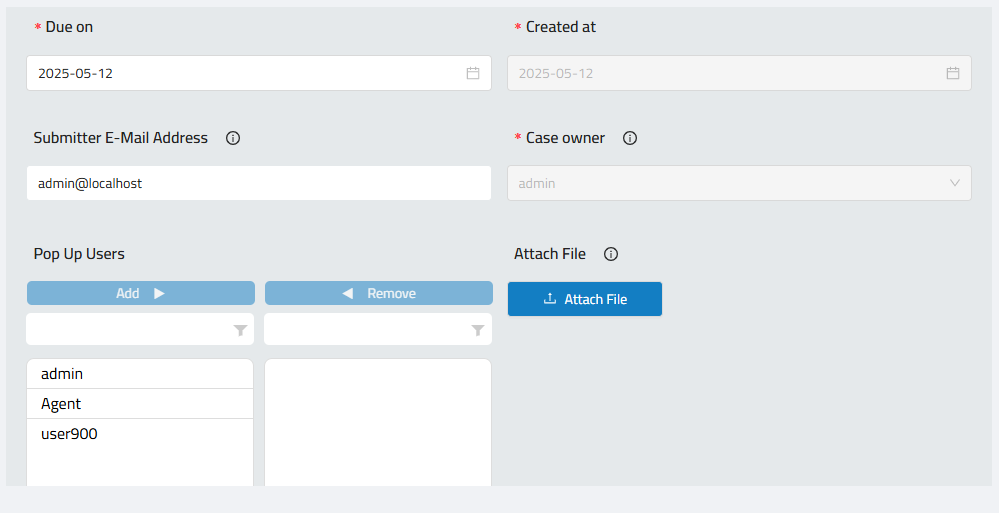
Due on: Date the ticket should be addressed.
Created at: Automatically set to the current date/time or may be adjusted if needed.
Submitter Email Address: Email of the person submitting the ticket.
Case Owner: Assigned team member responsible for resolving the issue.
Pop Up Users: Users who should be notified about the ticket or have visibility on it.
Attach File: Upload related files such as screenshots, logs, or documents.
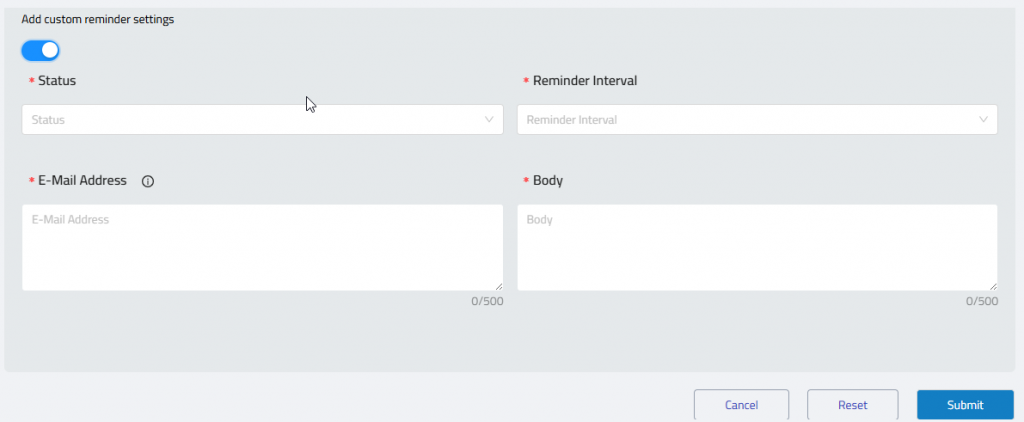
Custom Reminder Settings:Toggle this option to enable automated reminders.
Status: Status of the ticket (e.g., Open, In Progress, Resolved).
Reminder Interval: Frequency of reminders (e.g., Daily, Weekly, Monthly).
E-Mail Address: Where reminder notifications will be sent.
Body: Custom message body for the reminder (max 500 characters).
After Creation
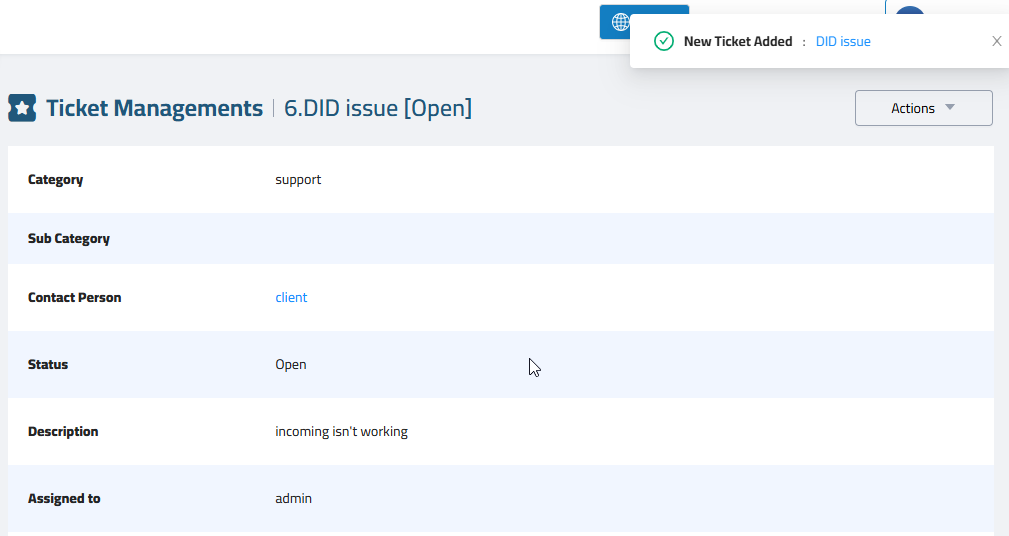
A pop-up appears when adding, editing, or changing the status of tickets.
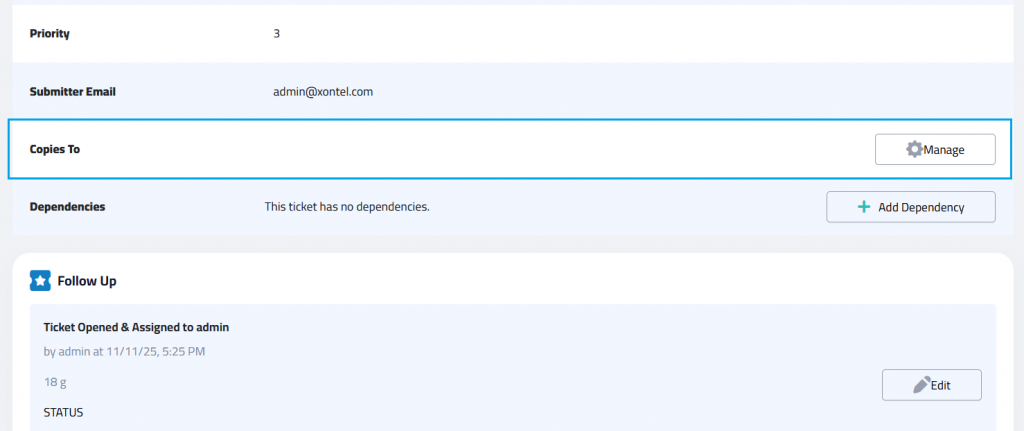
Copies To
To assign users or email addresses to follow this ticket.
click Manage button
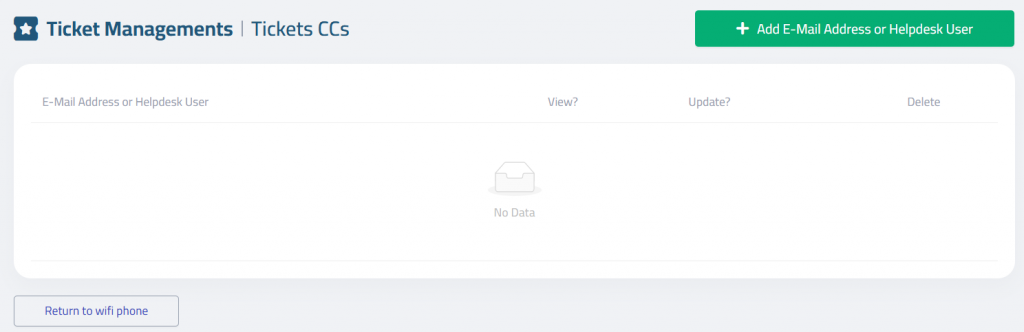
click Add E-Mail Address or Helpdesk User
Add Ticket CC
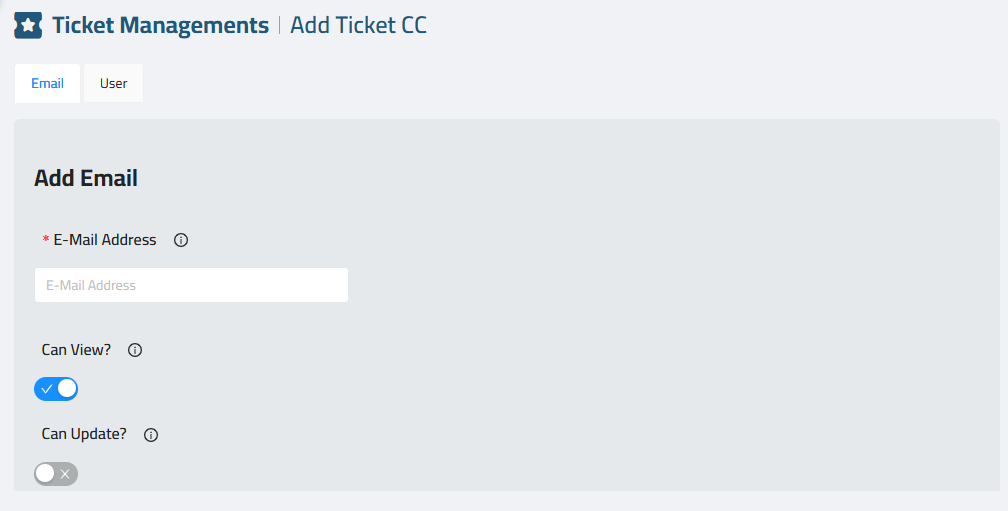
The Ticket CC feature allows multiple email addresses to be added to a ticket for visibility and collaboration. You can manually enter one or more email addresses to include them in the ticket conversation, or use the Users tab to select system users and assign the ticket to them. All CC’d users will receive updates and notifications related to the ticket.
Dependencies
The Add Dependency feature allows you to link the current ticket to another existing ticket. You can select a ticket from the list, and the selected ticket must be resolved first before this ticket can be resolved. This helps maintain proper workflow order and ensures related issues are handled in the correct sequence.
click Add Dependency button
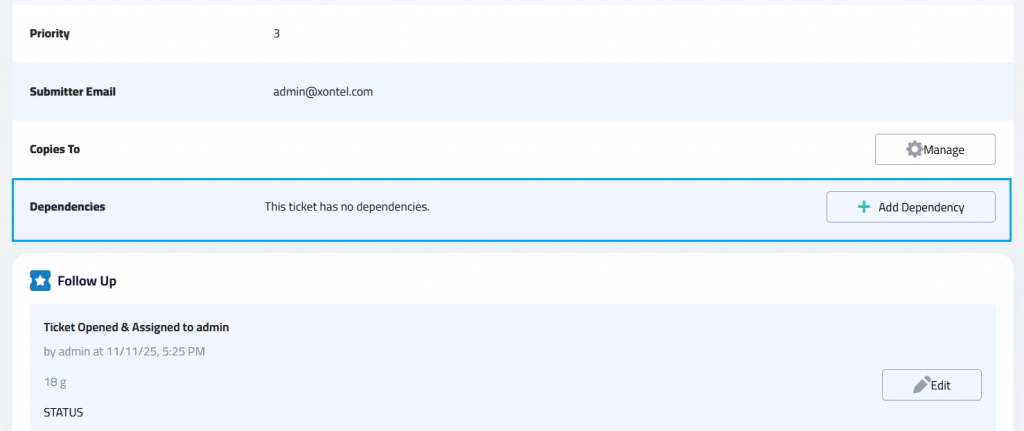
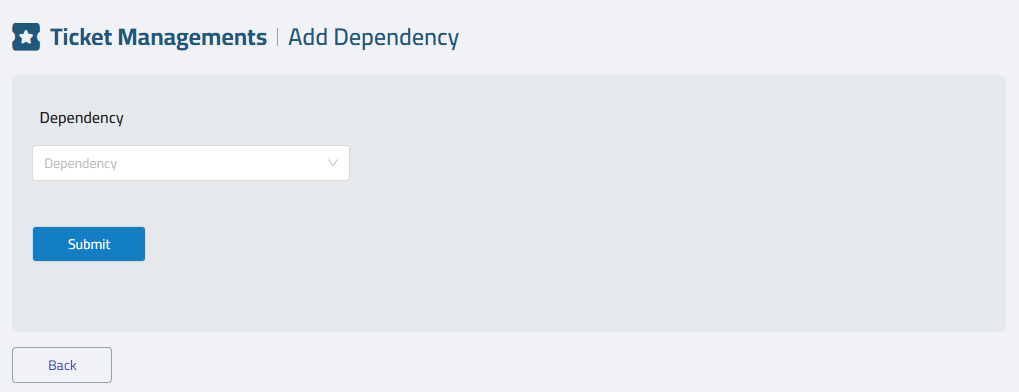
You can select a ticket from the list.