• XonTel WiKi
  • Telsip WiKi
  • XonTel WiKi
  • Telsip WiKi
  • PBX Manager
    • PBX V 1.X.X
      • Overview
        • Installation
          • PBX ISO Installation on ESXi
        • License Activation & Verification
        • Log in to the PBX
      • System
        • Authentication
          • Users
          • Groups
          • Permissions
        • Network
          • Network Interface
          • Network Routes
          • Network Host
          • Static Routes
          • Diagnostic Tools
        • Host Name
        • Email
        • Security
          • IP Tables
          • Fail2ban
        • Dynamic DNS
        • VPN
          • Open VPN
          • SSTP
        • Maintenance
        • LDAP
      • PBX
        • Extensions
        • Trunks
        • Call controls
          • Inbound Routes
          • Outbound Routes
          • Time Conditions
          • Auto CLIP
        • Call Features
          • IVR
          • Ring Group
          • Queue
          • Paging/Intercom
          • Blacklist
        • Voice Prompts
        • Music On Hold
        • NAT
        • Status
        • CDR
        • Feature Code
        • Recording Storage
        • Transport
        • TLS Certificate
      • Event Center
        • Session Timeout
        • Activity Log
  • Call Center
    • Call Center V 1.X.X
      • Overview
        • Installation
        • Log in to the call center
        • License Activation & Verification
      • Dashboard
        • Agent Insights
        • Inbound calls
        • Outbound calls
        • My Dashboard
      • Call Center Management
        • Missed Call Actions
          • Missed Calls Actions History
          • Missed Call Actions
          • Missed Calls Actions Logs
        • Type of Break
        • Widgets
        • CDRs
        • CDR Survey Questions
        • Queues
        • Queue Logs
        • Queues Evaluation
        • Trunk
        • External Lookup
      • Contacts Management
        • Contacts
        • Contact Groups
        • Companies
        • Contact Custom fields
        • Customer Journey
      • Authentication
        • Users
          • Admin
          • Supervisor
          • Agent
        • Groups
        • Permissions
        • Add End User
      • Applications
        • Ticket Managements
          • Categories
            • Sub Categories
          • Create Ticket
          • Tickets List
          • Reminder Settings
          • Dashboards
          • Ticket Statistics
          • Tickets CCs
          • Follow Up
          • Custom Fields
          • Notifications Templates
          • Ticket Logs
        • SMS
          • SMS Message
          • Bulk SMS
          • SMS Templates
        • Email Management
          • Outgoing Emails
          • Incoming Emails
          • Attachments
          • Templates
          • Teams
        • Auto Dialer
          • Dial Teams
          • Auto Dialer Log
          • Auto Dialer Status
        • Web Chat
          • Dashboard
          • Offline Messages
          • Web Chat Logs
        • Social Media
          • Social Media Teams
          • Social Media Sessions Tracker
          • WhatsApp
        • Agent Chat
      • Reports
        • Generate Reports
      • Settings
        • Site Administration
        • Email Settings
        • Email Channel Mailbox
        • Email Channel Outbox
        • Email Logger
        • Web Chat Settings
        • SMS Gateway
        • ODBC Settings
        • System Parameters
        • Updates
        • Https Certification
        • Web Phone Configuration
        • Web Logo Settings
        • End User Logo
      • Block
        • Blocked Word
        • Block Settings
      • Status
      • Session Control
      • Activity Log

License Activation & Verification

85 views 0

Written by xontel_admin
July 2, 2025

To ensure security and validity, your PBX system requires a valid license from XonTel. This system is protected and licensed, and must be activated before full access is granted.

🔑 First-Time Login – License Activation Required

Upon first login to your PBX system, a valid license must be applied before accessing the full system features.

📝 Activation Process

Step 1: Retrieve Your License Info

You will see two important values displayed:

  • Client Code – a unique identifier for your PBX installation
  • Hash Key – a security hash generated for license validation
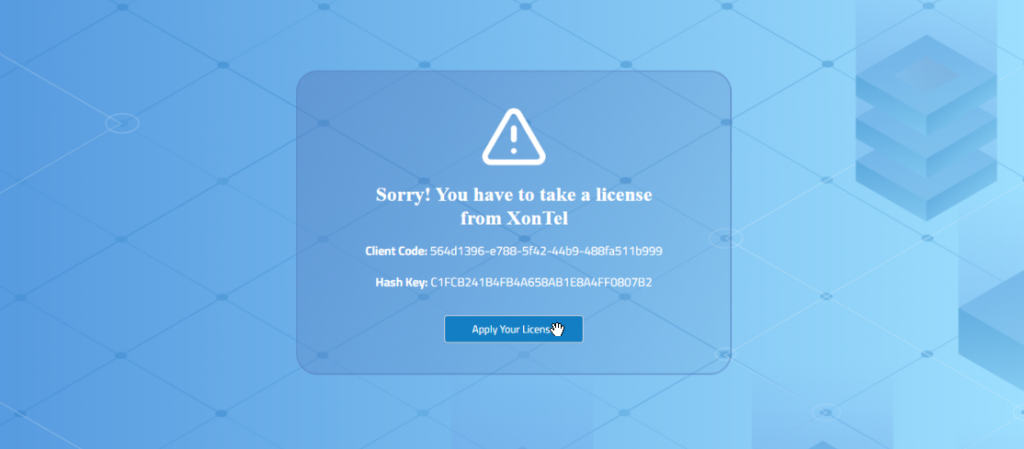
Step 2: Request a License Key

Send your Client Code and Hash Key to XonTel Support .

Step 3: Enter Your License Key

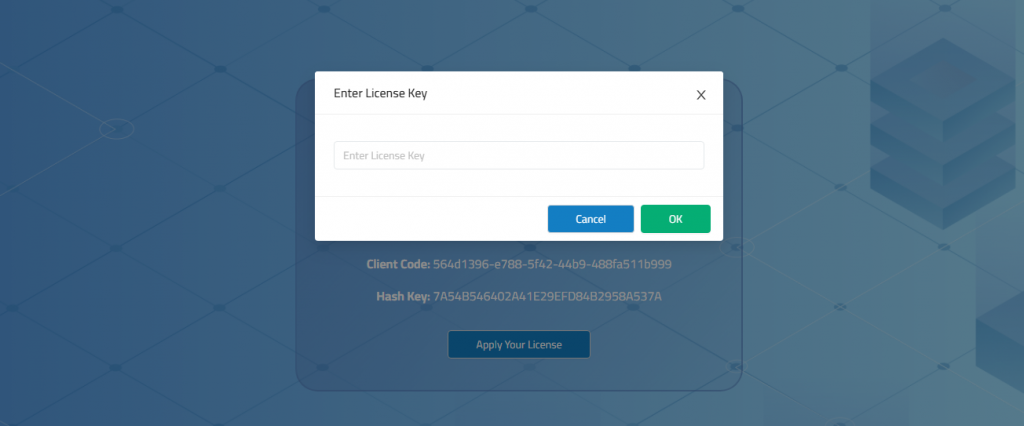
  1. Click on Apply Your License.
  2. A pop-up will appear asking for your License Key.
  3. Paste the key provided by XonTel.
  4. Click OK to activate.

Once successfully applied, the system will reload and allow full access.

✅ Viewing Current License
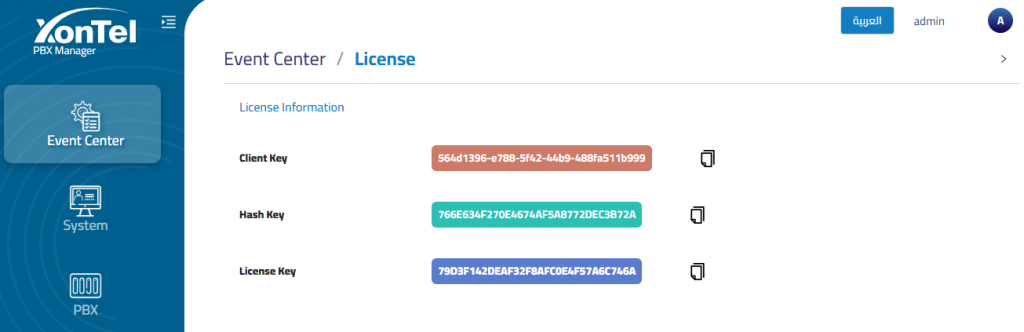
To check your license status or confirm successful activation, go to:

Event Center → License

You’ll find the section:

License Information Fields:

  • Client Key: Your device’s unique identifier.
  • Hash Key: The secure fingerprint for verification.
  • License Key: The key that unlocks your PBX functionality.

Was this helpful?

Yes  No

Didn't find your answer? Contact Us

Previously
PBX ISO Installation on ESXi
Up Next
Log in to the PBX

Products

Menu
  • IP Phones
  • IP PBX
  • IP-Gateways
  • IP Intercom
  • IP Products

Services

Menu
  • XonTel PBX
  • XonTel Call Center
  • XonTel AI

Support

Menu
  • Wiki
  • Submit Ticket
  • FAQ
  • Manuals & Firmwares
  • Products Catalog
logo_invert

Manufacturing IP Phone and IP-PBX Systems, Mobile Applications and Web Development, Cloud Services.

Network Solutions, CCTV Cameras and Security Systems.

Copyright 2025 – XonTel all rights reserved

Facebook Twitter Instagram Linkedin Youtube Whatsapp